
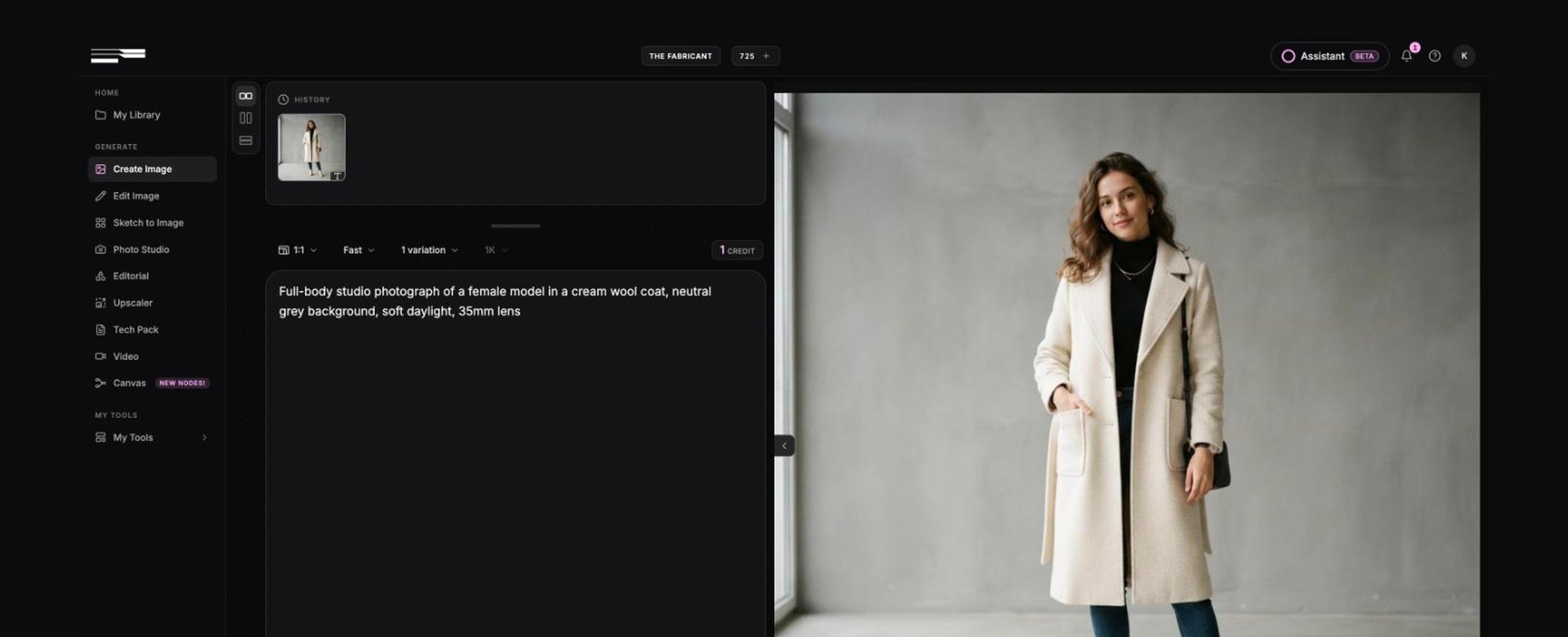
The Fabricant Intelligent Tools have gained a set of small features over the past months that save time on every generation: saved prompt templates, a button that expands a short prompt, settings that remember your last choice, a crop tool inside Edit Image, a rebuilt library with search, and a light mode. None of them got a launch announcement. This guide walks through each one and where to find it.
Prompt templates are saved prompts that you insert with one click. Every tool has a row of ready-made templates under the prompt box, and you can add your own. A template is plain text, so you can still edit it after inserting it.
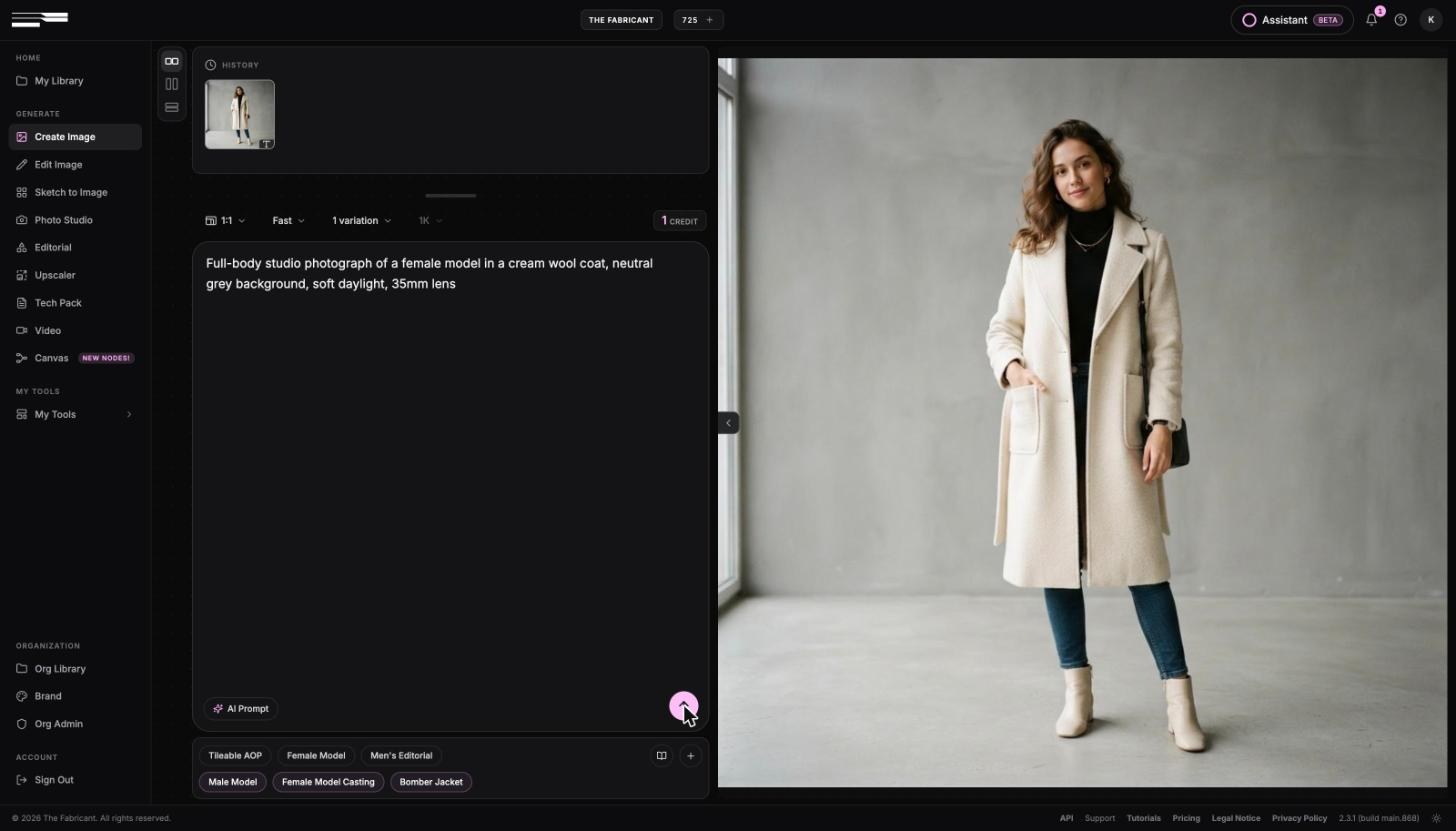
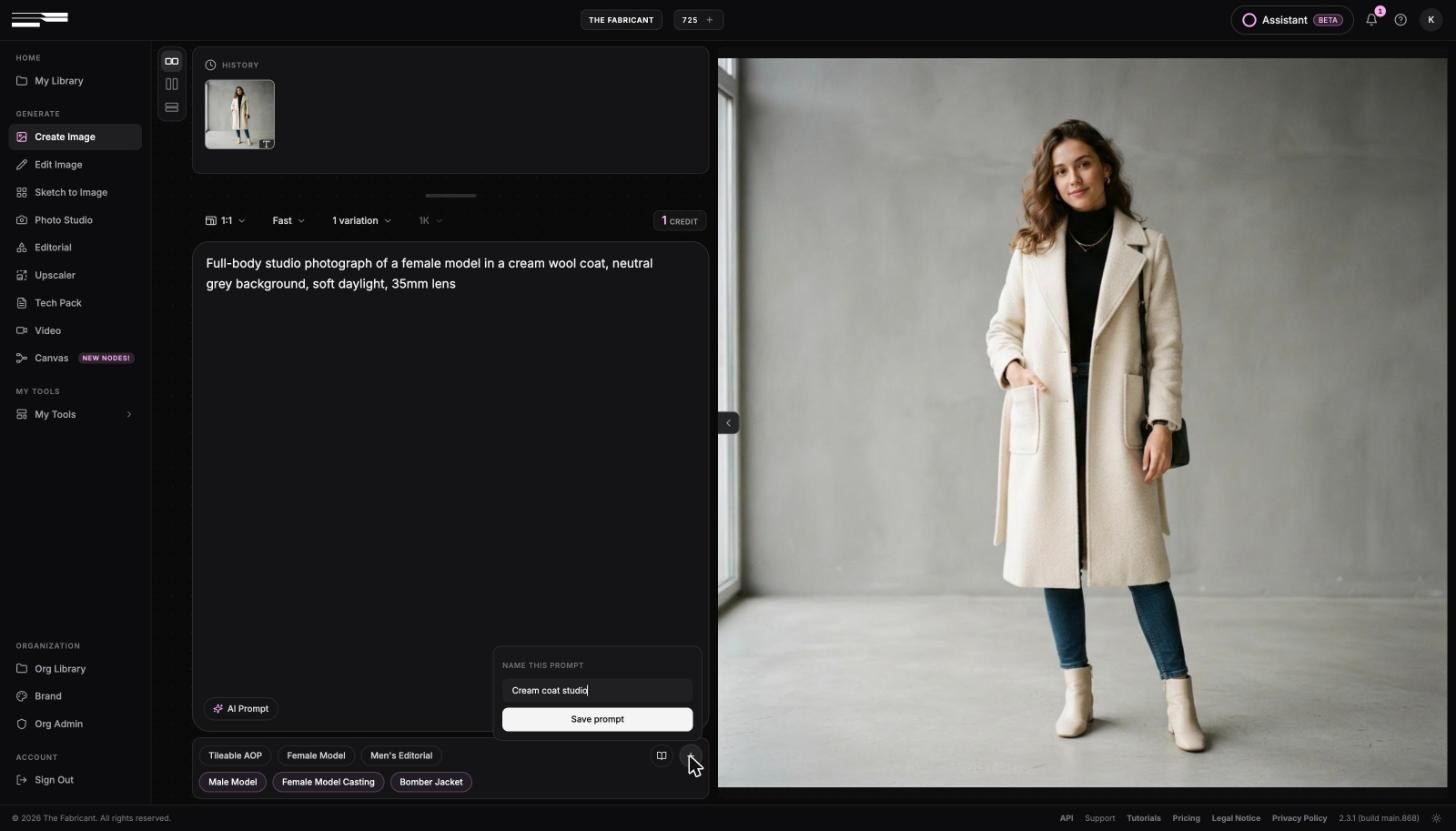
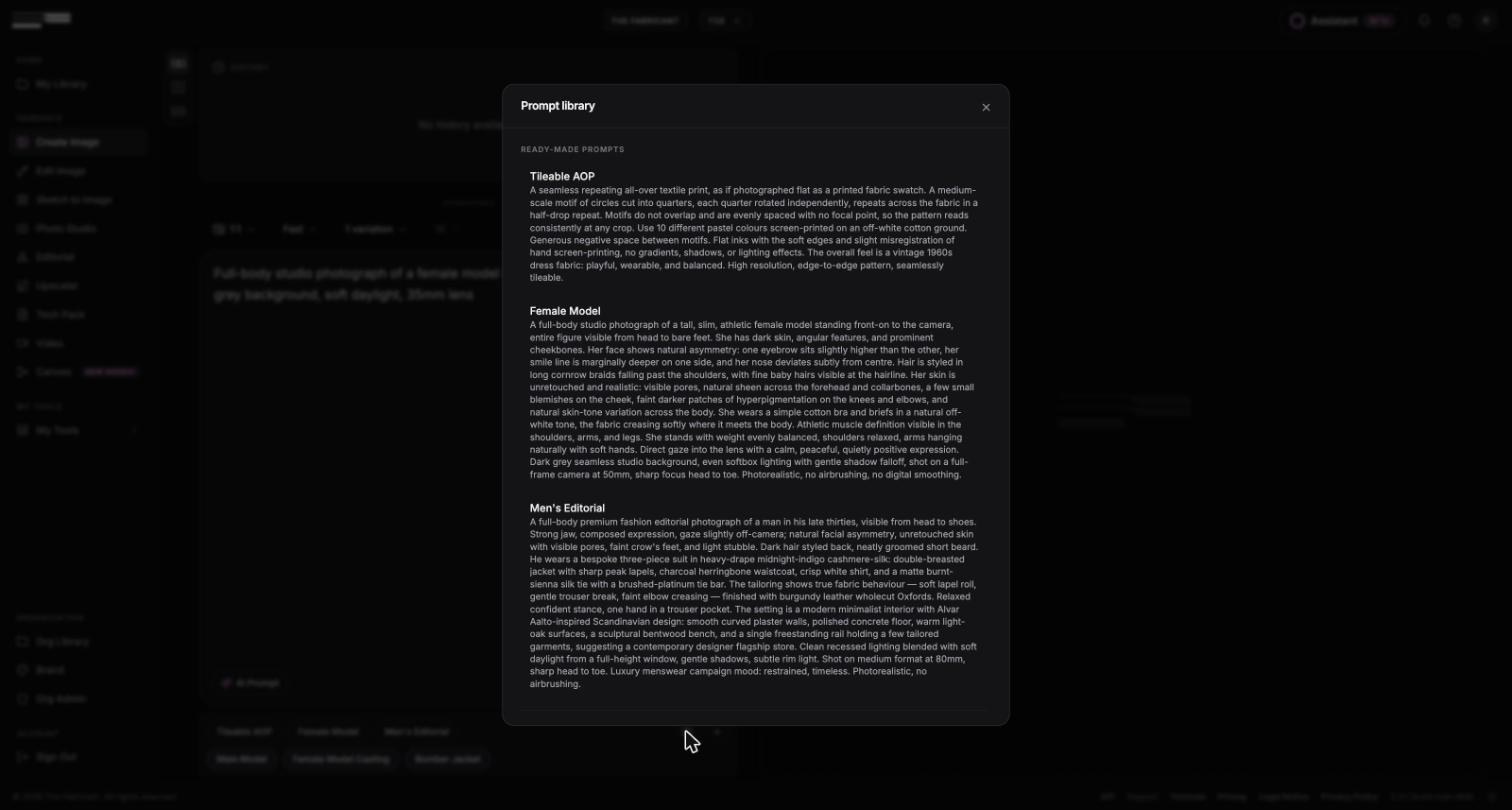
The book icon next to the + button opens the Prompt library, where you can read the full text of the ready-made prompts and manage the ones you saved.
AI Prompt is a button below the prompt box that rewrites a short prompt into a detailed one. Type a few words, click AI Prompt, and the expanded prompt replaces your text. Read it before generating and remove anything you did not mean.
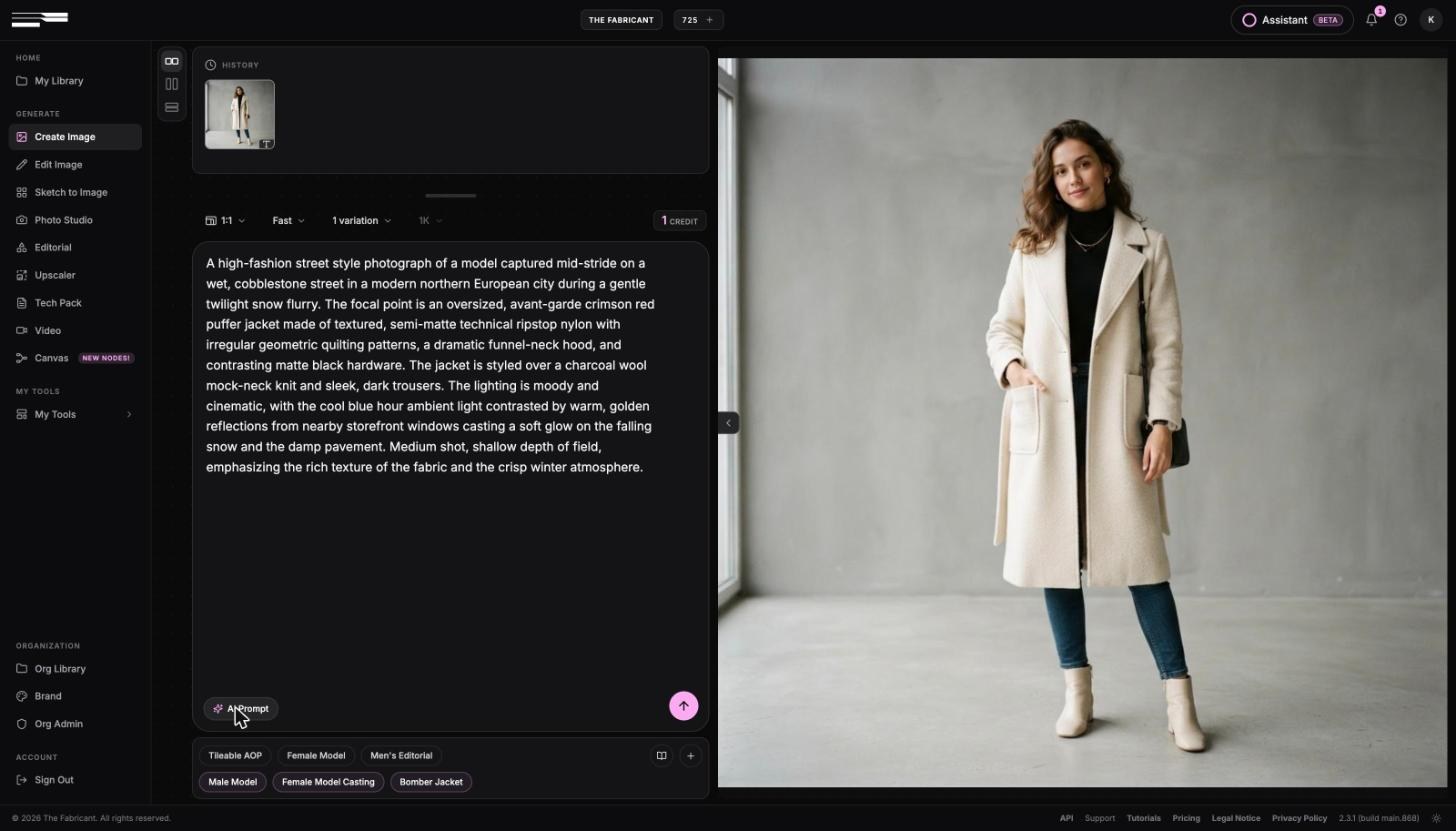
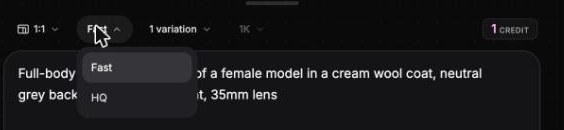
Each tool page remembers the last value you chose for every setting. If you set Edit Image to High Quality and 2K once, the next time you open Edit Image it starts on High Quality and 2K. The same applies to aspect ratio and the number of variations. You no longer reset the settings bar at the start of every session.
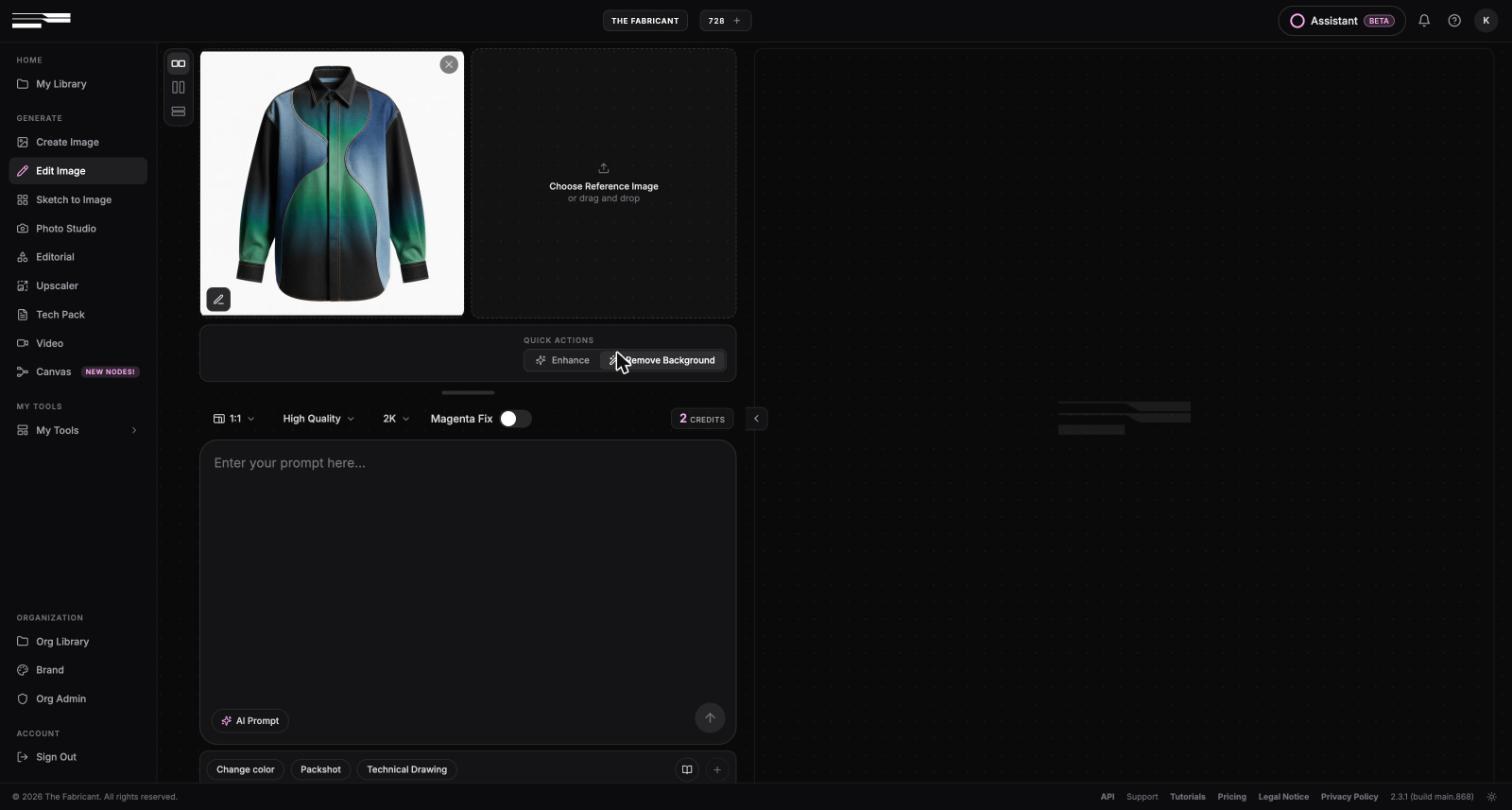
Edit Image also has two quick actions above the settings bar: Enhance and Remove Background. Both run on the source image without a prompt.
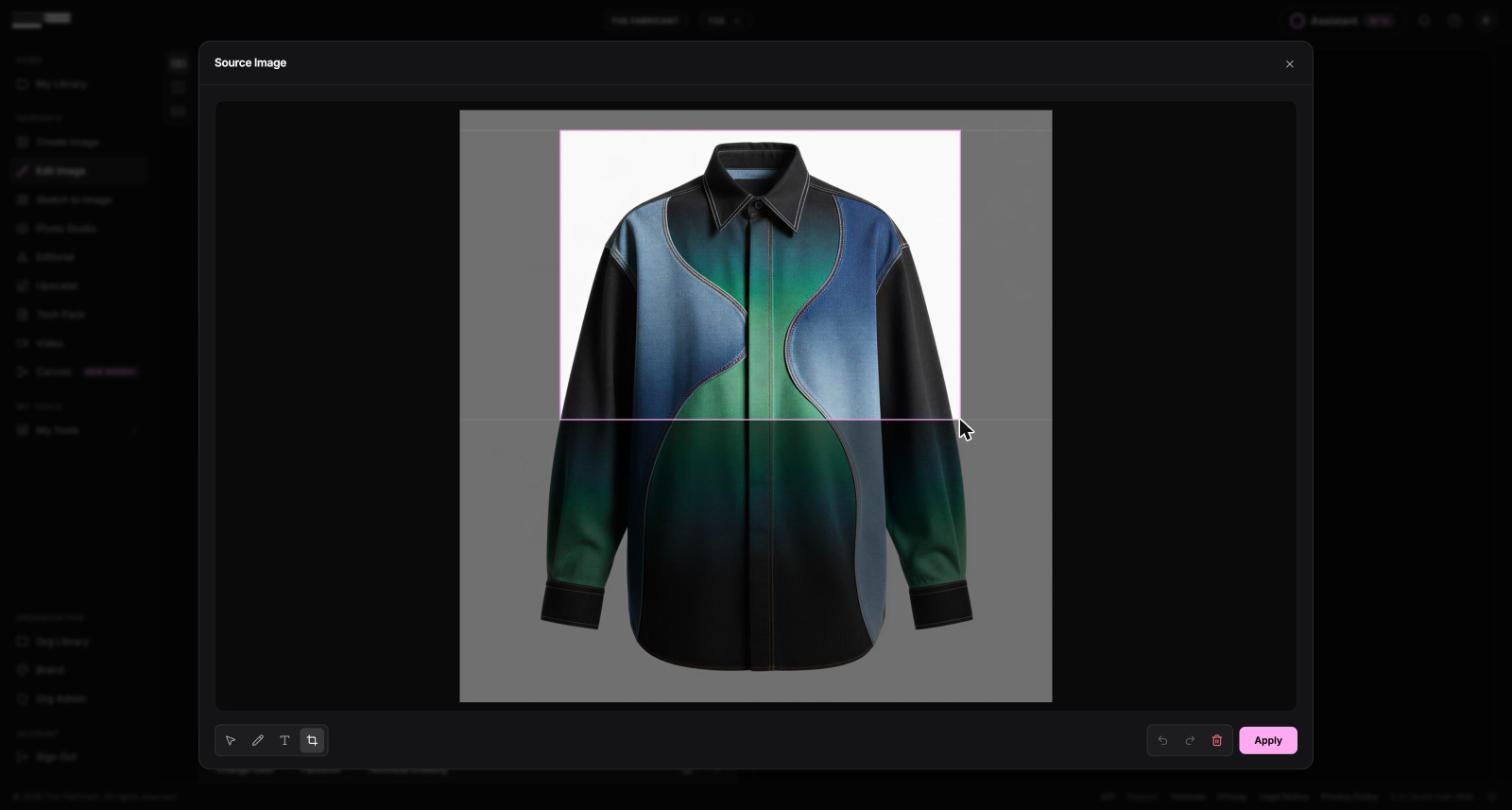
The image editor in Edit Image has a crop tool. Click the pencil icon on the source image to open the editor, pick the crop icon at the bottom left, and drag a box over the area you want to work on. Use it when the change is small, for example a neck label or a pocket detail, so the tool spends its attention on that area.
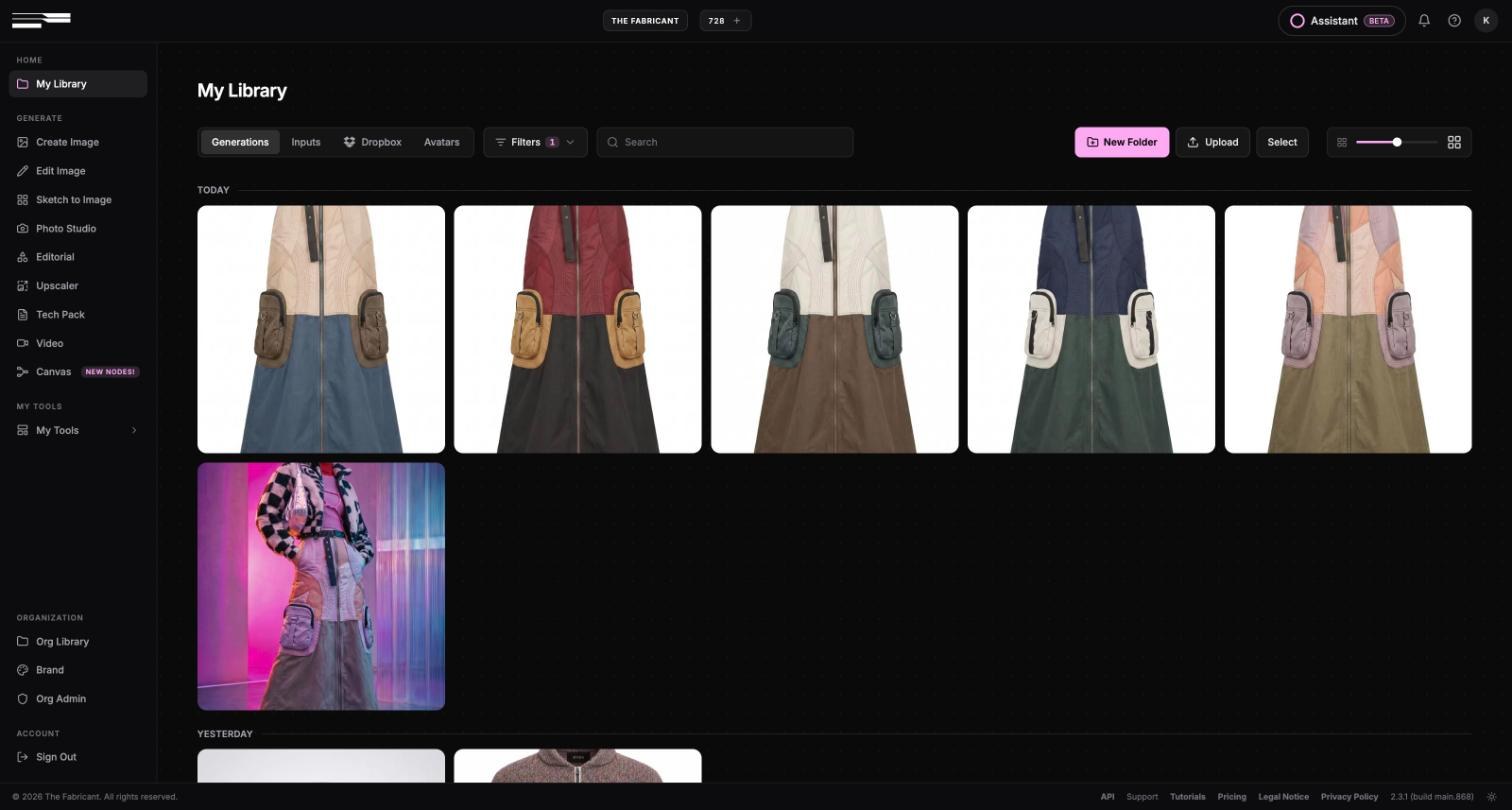
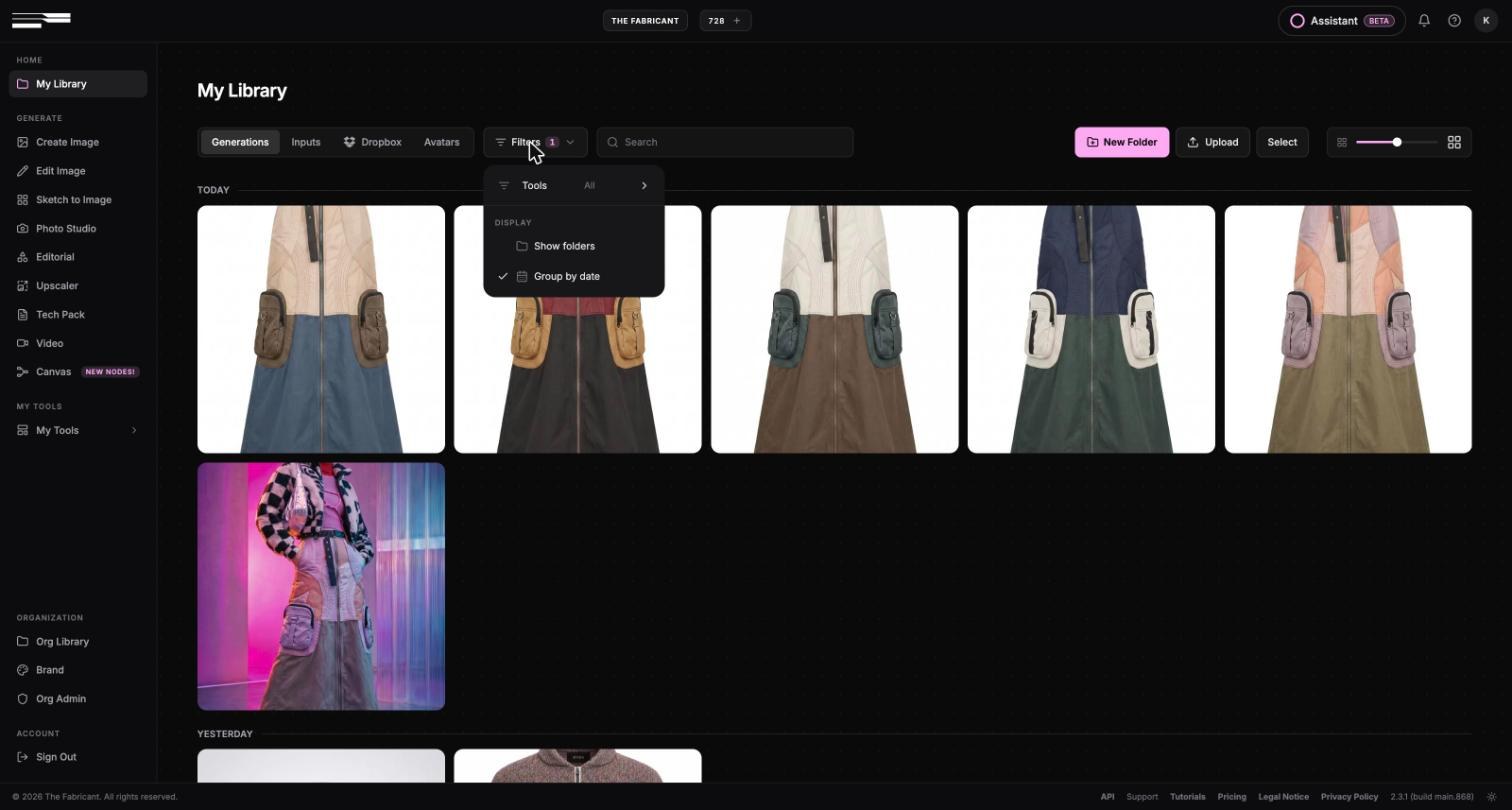
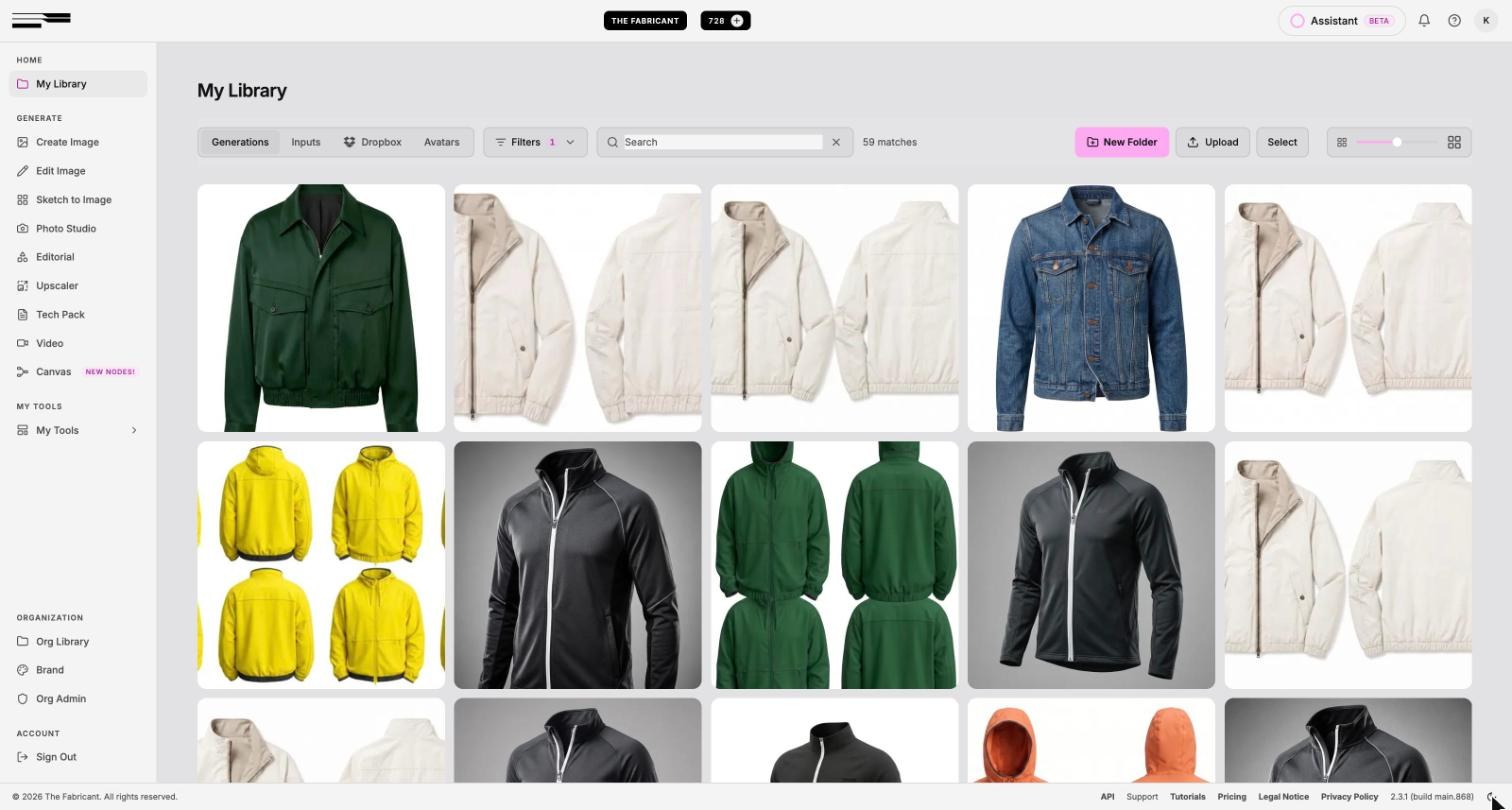
My Library was rebuilt with a tile view. The slider at the top right changes the tile size, and the Filters menu adds grouping by date, folder display, and a filter by tool.
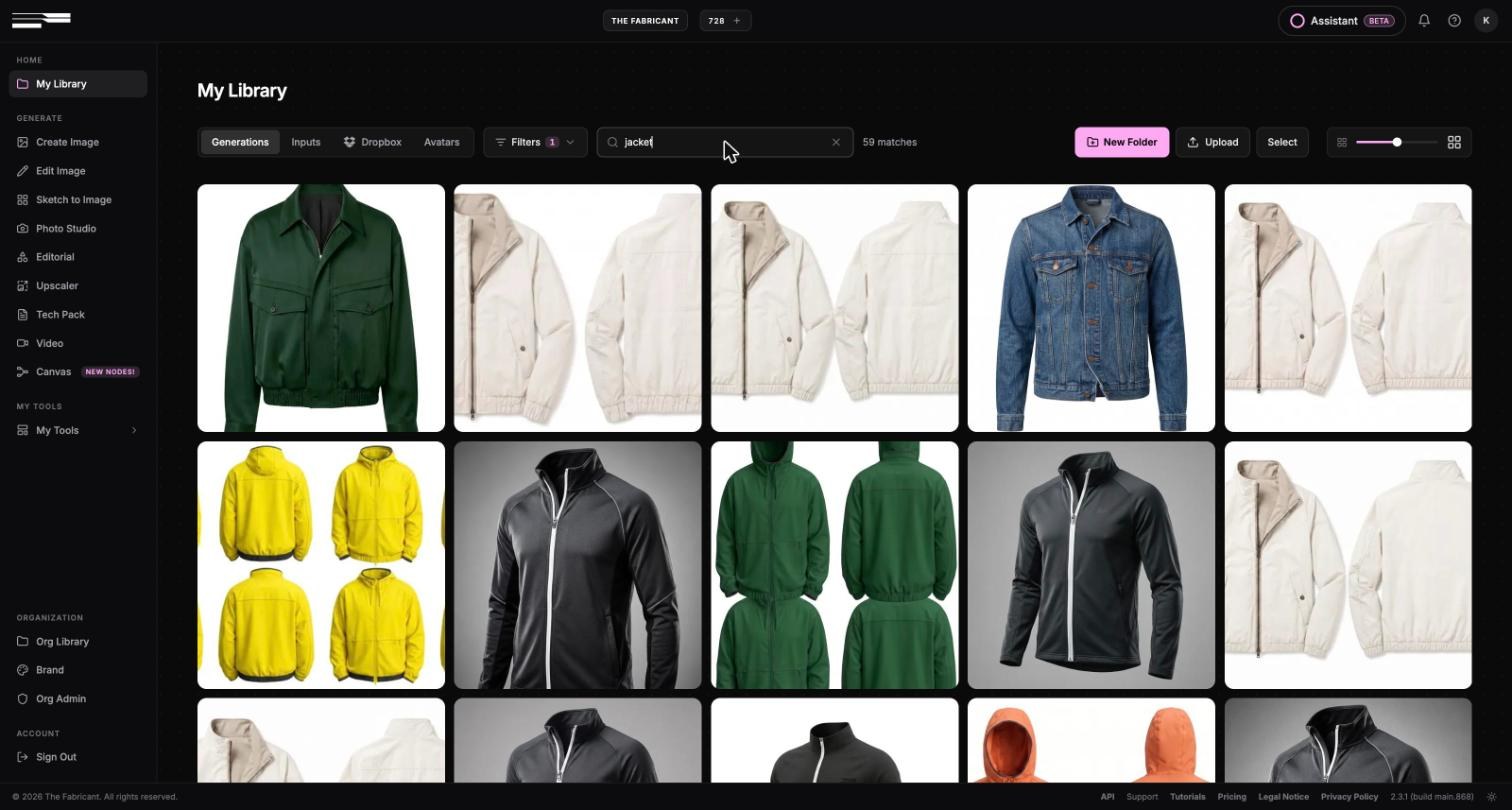
The search box at the top of the library finds generations by what is in them. Type a word such as "jacket" and the library shows the matches and a count.
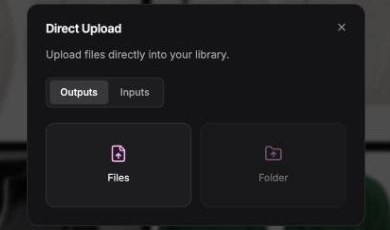
The Upload button opens a dialog where you choose whether the files are outputs or inputs, then pick files or a whole folder. Drag and drop onto the library works too.
Select mode gives you an Actions menu for several images at once: move to a folder, download, build a mood board, or send them to Miro or Dropbox.
A sun icon at the bottom right corner of the footer switches the platform to light mode. Click it again for dark mode. The choice is remembered.
Saved prompts are personal and per tool. To share a prompt with colleagues, paste the text into a shared document, or build the workflow in Canvas and share that instead.
No. Expanding a prompt is free. Credits are spent when you generate.
The memory applies to the tool pages. Canvas nodes keep their own settings inside each saved workflow.
Yes. Use the Tools entry in the Filters menu to show only Edit Image results, only Photo Studio results, and so on. Combine it with the search box to narrow further.
Open app.thefabricant.com, save the prompt you type most often as a template, set your preferred quality once, and use the library search the next time you look for an image.