
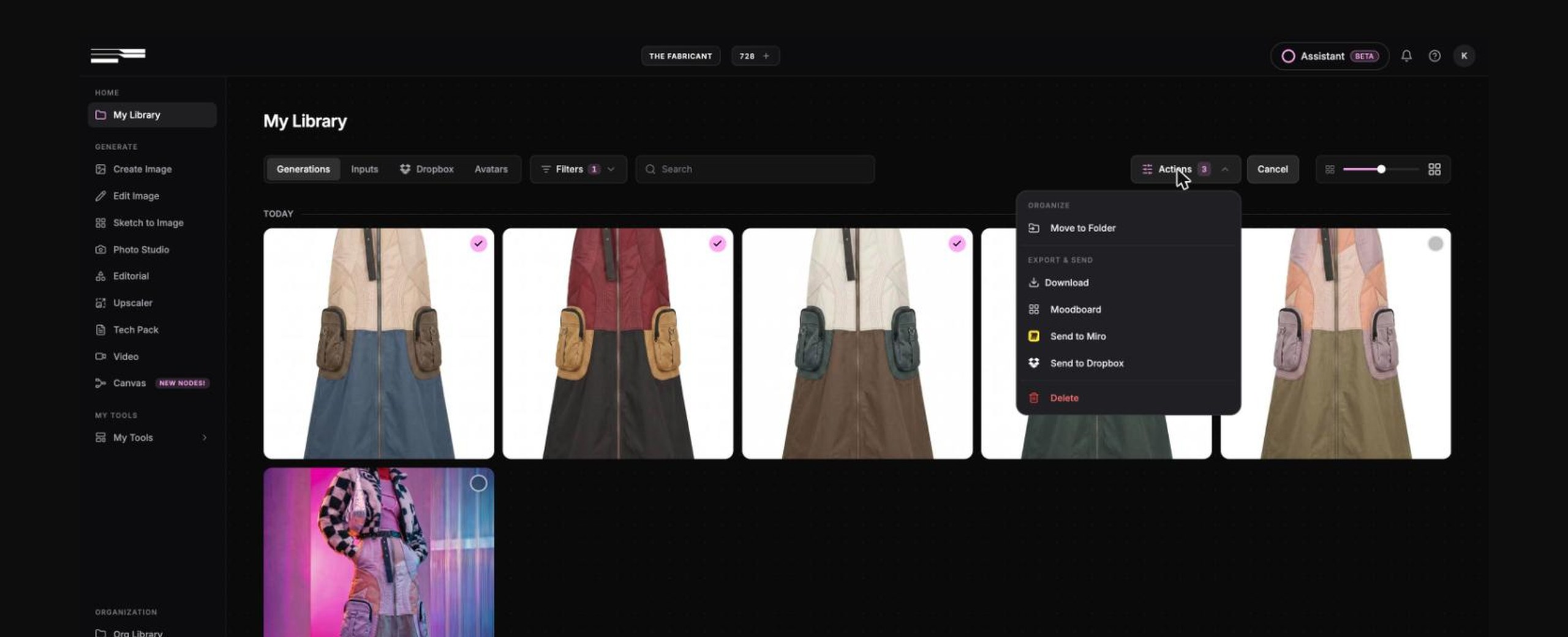
The Fabricant Intelligent Tools connect to Miro, Dropbox and, for enterprise teams, to your own software through the Partner API. These integrations move generated images to where your team already works: a mood board, a shared folder, or an automated pipeline. This guide shows where each connection lives, how to switch it on, and what it does day to day.
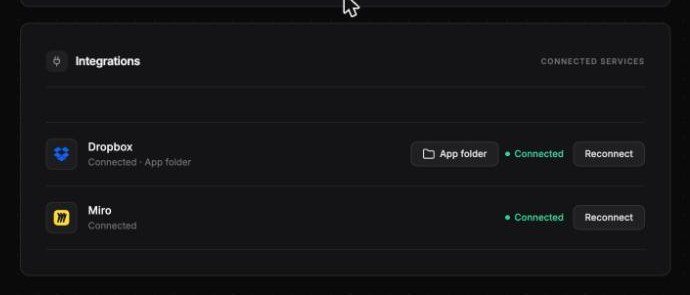
All connections are set up in one place. Open your profile from the avatar in the top right corner and scroll to the Integrations section. Each service has a Connect button, and once connected it shows a green Connected label.
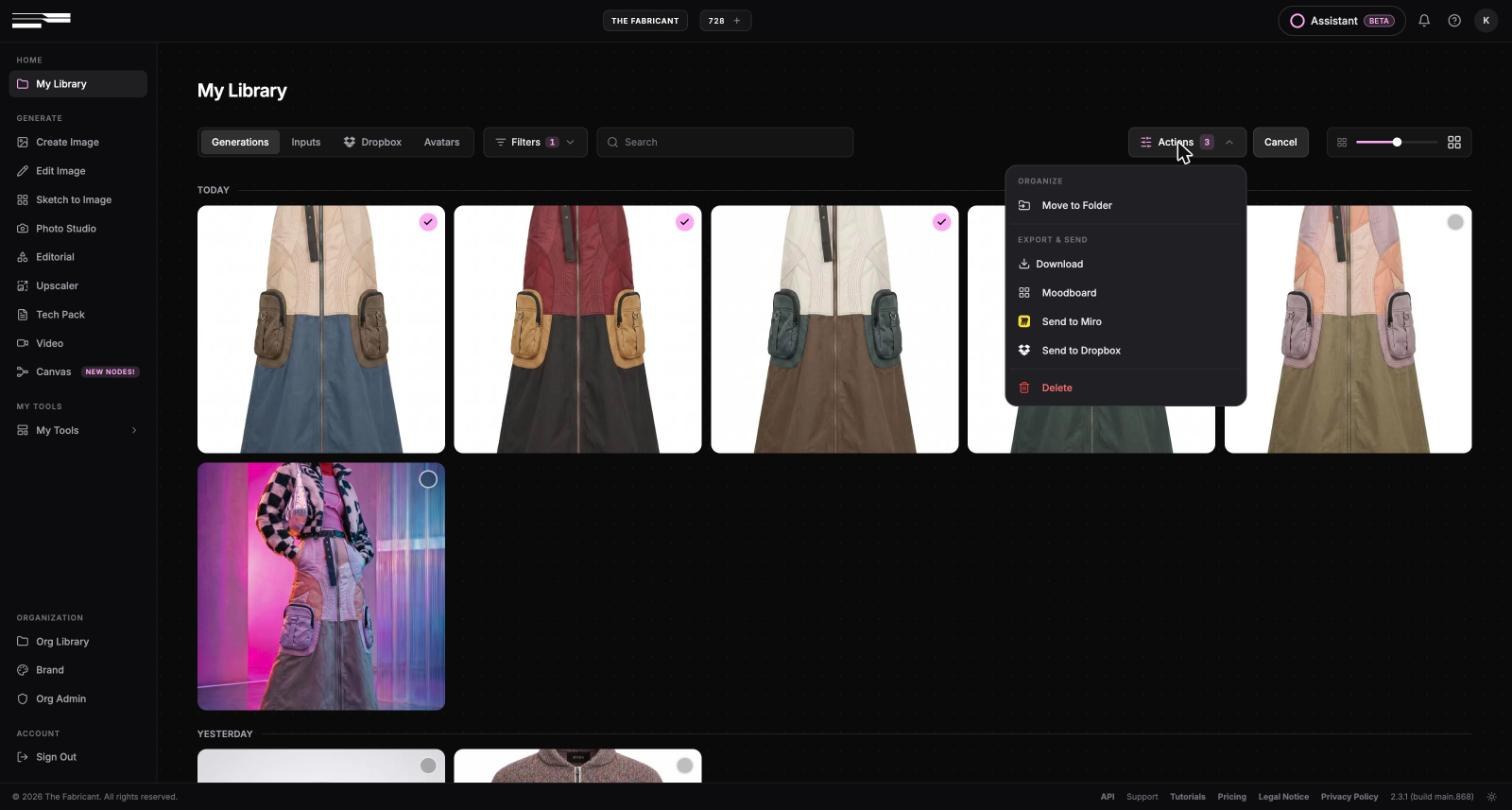
Send to Miro is a library action that places selected images on a Miro board. Many fashion teams build their mood boards and collection overviews in Miro, so this removes the download and re-upload step between generating an image and showing it to colleagues.
The images arrive on the board as separate items, placed at the centre of the board. Drag them into position on your mood board. The Miro connection is available on all paid plans.
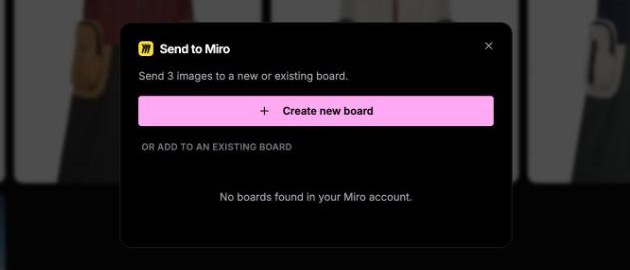
Two practical notes. If your company restricts which apps can connect to Miro, your Miro admin needs to allow The Fabricant first. And a free Miro account that has reached its board limit cannot create a new board, so pick an existing board in that case.
The Dropbox integration is a two-way sync between a Dropbox app folder and your library. Files you drop into the folder appear in the platform, and generations you send to Dropbox appear in the folder. It is the simplest way to exchange inputs and results with a colleague or an agency that is not a member of your organisation.
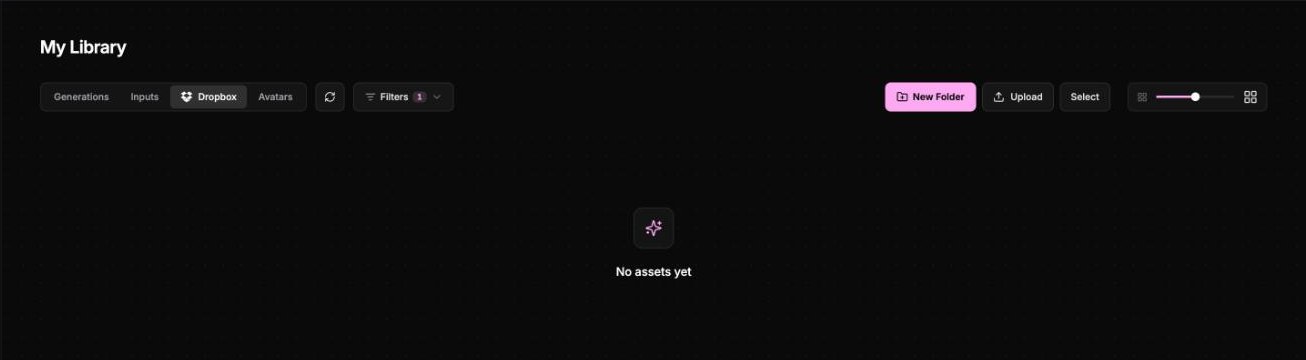
Folders and sub-folders are kept on both sides, and new folders you create in the platform are created in Dropbox as well. To send a generated image to the folder, select it in the library, open Actions and choose Send to Dropbox.
The Partner API is code access to the tools behind the platform. It is built for enterprise teams that want to run generations from their own systems, for example colourways for a whole range from a product list, or an automated e-commerce image pipeline. It is switched on per organisation on request, and it is meant for a technical contact rather than every designer.
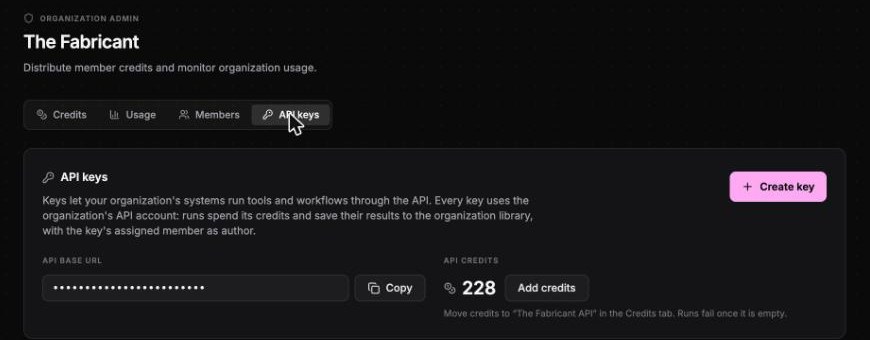
Organisation admins create keys under Org Admin in the API keys tab. Each key can be assigned to a member, so generations made through the API carry an author and land in the organisation library like any other generation. API runs use their own credit allocation, which you top up from the Credits tab.
The API link in the footer of the platform opens the documentation: a quick start, a Swagger explorer where you can try requests with your key, the OpenAPI specification, and a markdown download written so that it can be handed to a developer or to a coding assistant.
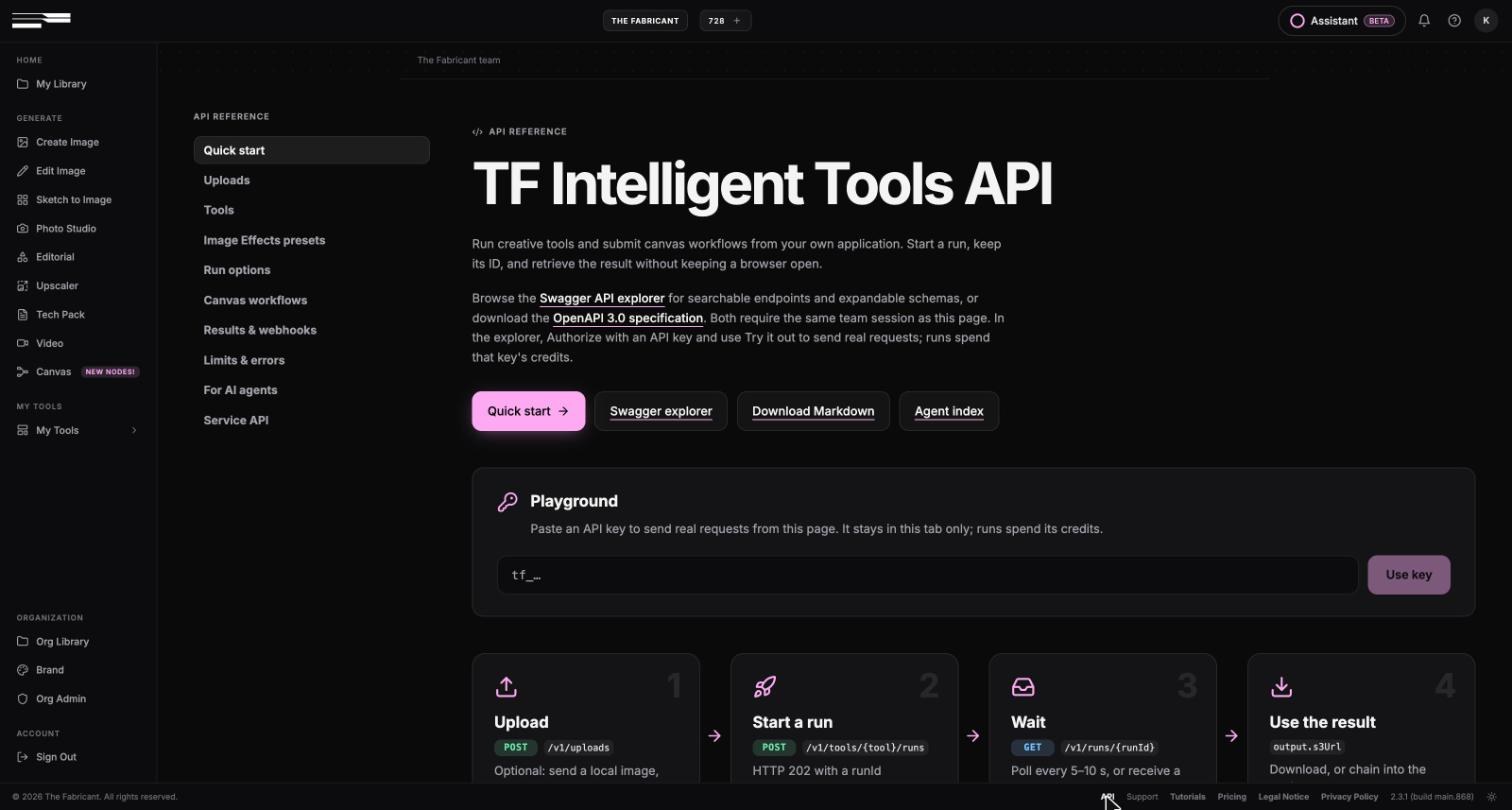
The API covers upload, Create Image, Edit Image, Photo Studio, Editorial, Sketch to Image, Upscaler, Video, Image to SVG, Remove Background, Image Effects, and Canvas workflows exported as JSON. Treat a key like a password: do not paste it into a chat tool, and rotate it if it has been shared.
If you are considering the API for your organisation, get in touch and we will set it up with your technical contact.
Send to Miro is available on all paid plans. Connect it once from the profile page and it is available in My Library.
The connection runs from The Fabricant to Miro. To use a Miro image as an input, download it and upload it to your library or drop it straight into a tool.
Yes. Files added to the app folder appear in the Dropbox tab of My Library, and images you send to Dropbox from the library appear in the folder.
Enterprise organisations, on request. An organisation admin creates the keys in Org Admin, and a developer on your side builds the connection using the documentation linked in the platform footer.
Open your profile at app.thefabricant.com, scroll to Integrations and connect Miro or Dropbox in under a minute.
The Partner API is set up per organisation. If your team wants to generate images at scale from its own systems, tell us what you want to connect and we will walk you through the setup.