Import it straight into Canvas to start from the exact node setup shown in this guide.
Editorial Advanced is a custom Canvas node in The Fabricant's Intelligent Tools that blends model, garments, pose, environment and lighting references into one cohesive, campaign-ready fashion image. Instead of describing a look in words, you show the node exactly what you mean, one reference per slot, and it stitches everything into a single unified output.
What Editorial Advanced does
Editorial Advanced synthesizes new imagery from your references rather than copying them pixel-for-pixel. It reads each input as a visual guide, then blends them into one coherent aesthetic: your model's identity, your garments, the stance you chose, the setting and the light. Three things set it apart:
Multi-reference control. Feed it Model, Garments, Pose, Environment and Lighting as separate visual guides.
Fine-tuned output. Set Mode (Fast or HQ) and Aspect Ratio right on the node.
A unified result. Every reference resolves into a single, coherent image.
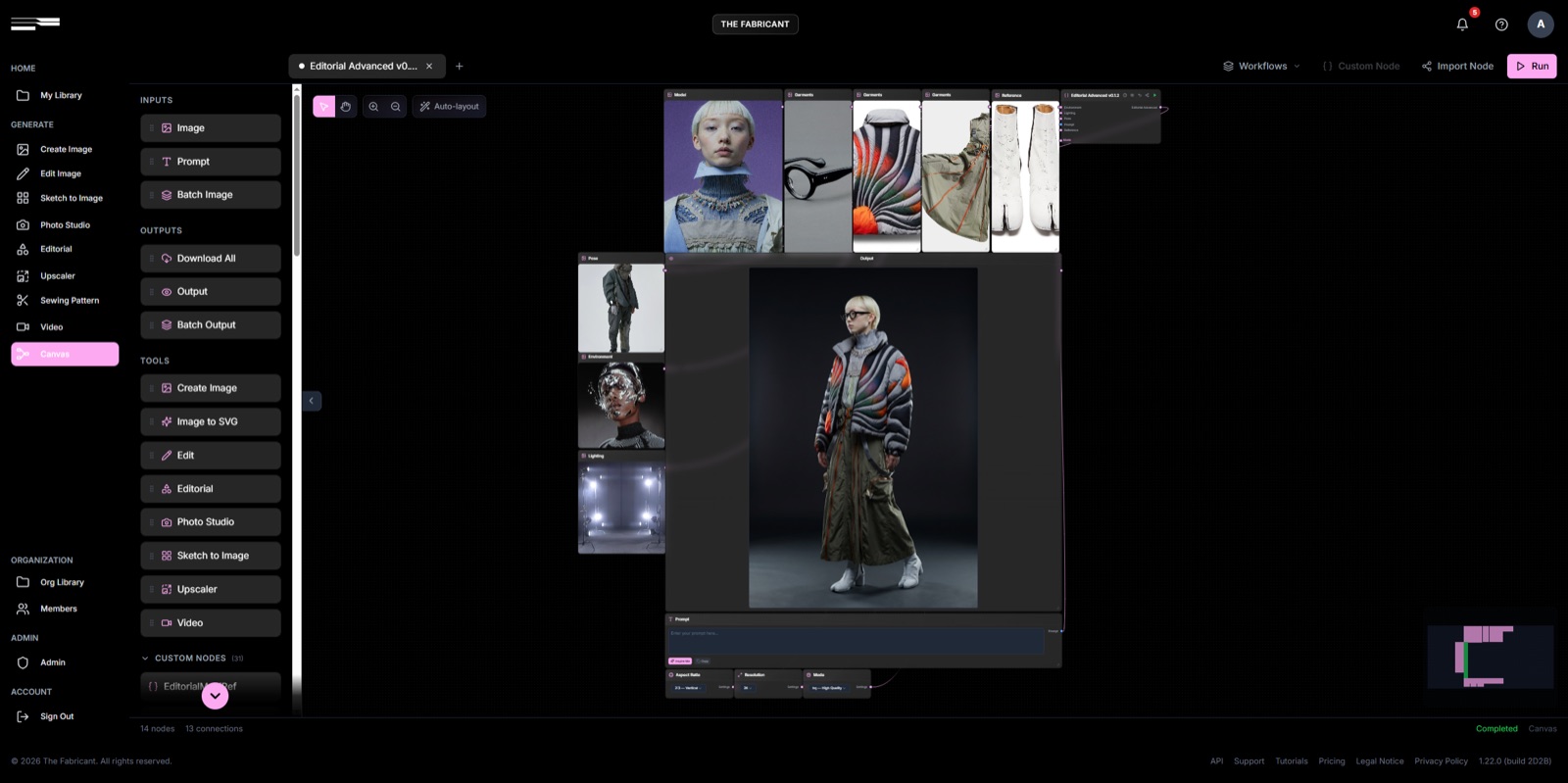
A fully wired node: reference thumbnails feed in, the unified look renders on the canvas.
How to find it in Canvas
Because it is a modular custom node, you won't find Editorial Advanced in the main sidebar. You build it onto your Canvas graph instead. Canvas is available to users on the Pro, Premium and Enterprise plans:
Open Canvas from the left-hand nav, under the Generate section.
Open the Custom Nodes menu, bottom-left of the workspace.
Drag the Editorial Advanced node onto your graph.
Connect your references, add an optional prompt, and hit Generate.
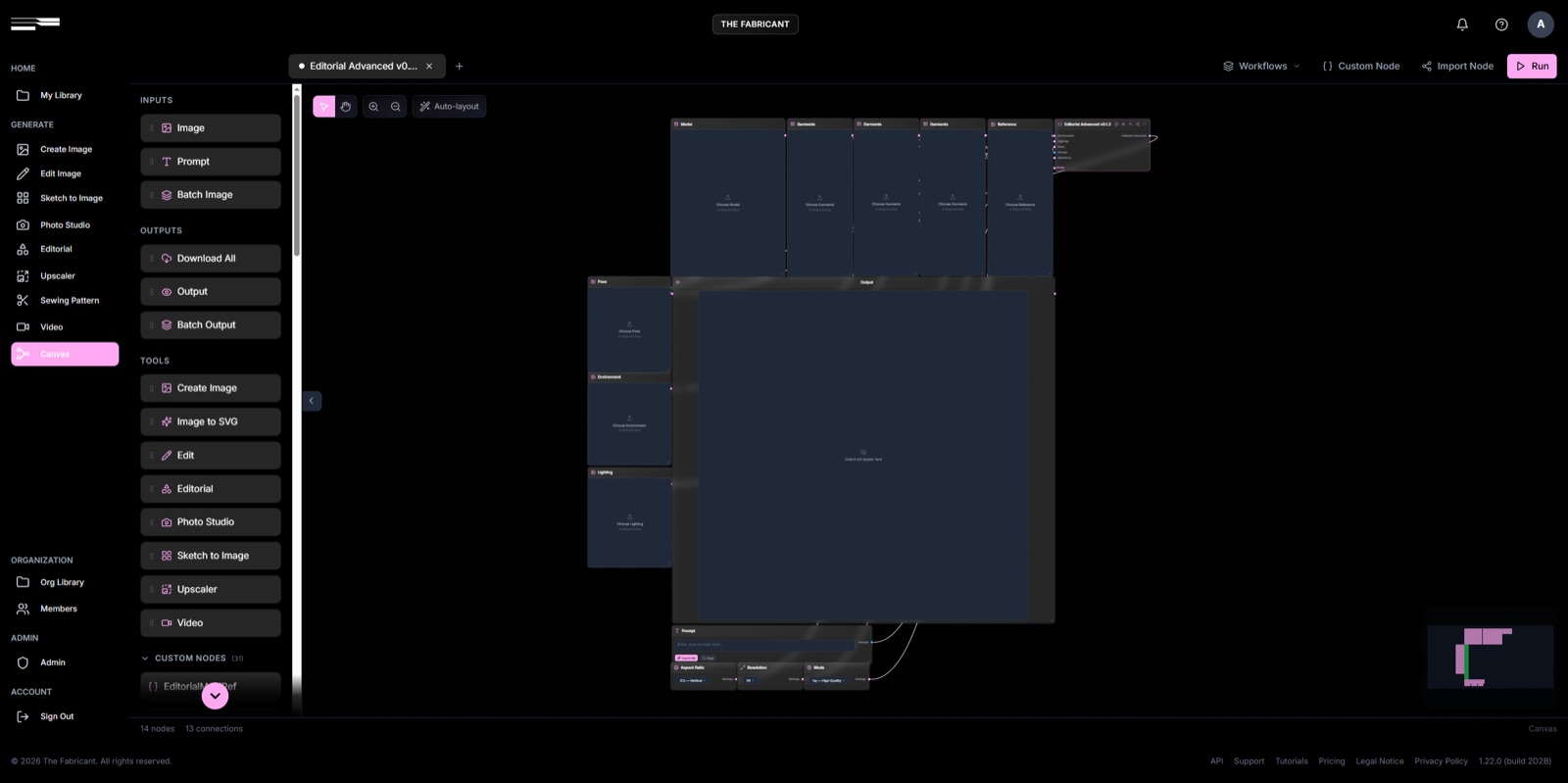
The Editorial Advanced node placed on a fresh Canvas graph, ready for inputs.
The input slots
Each input slot guides a different part of the image. Start with the references that define your subject.
Model, Garments and Reference
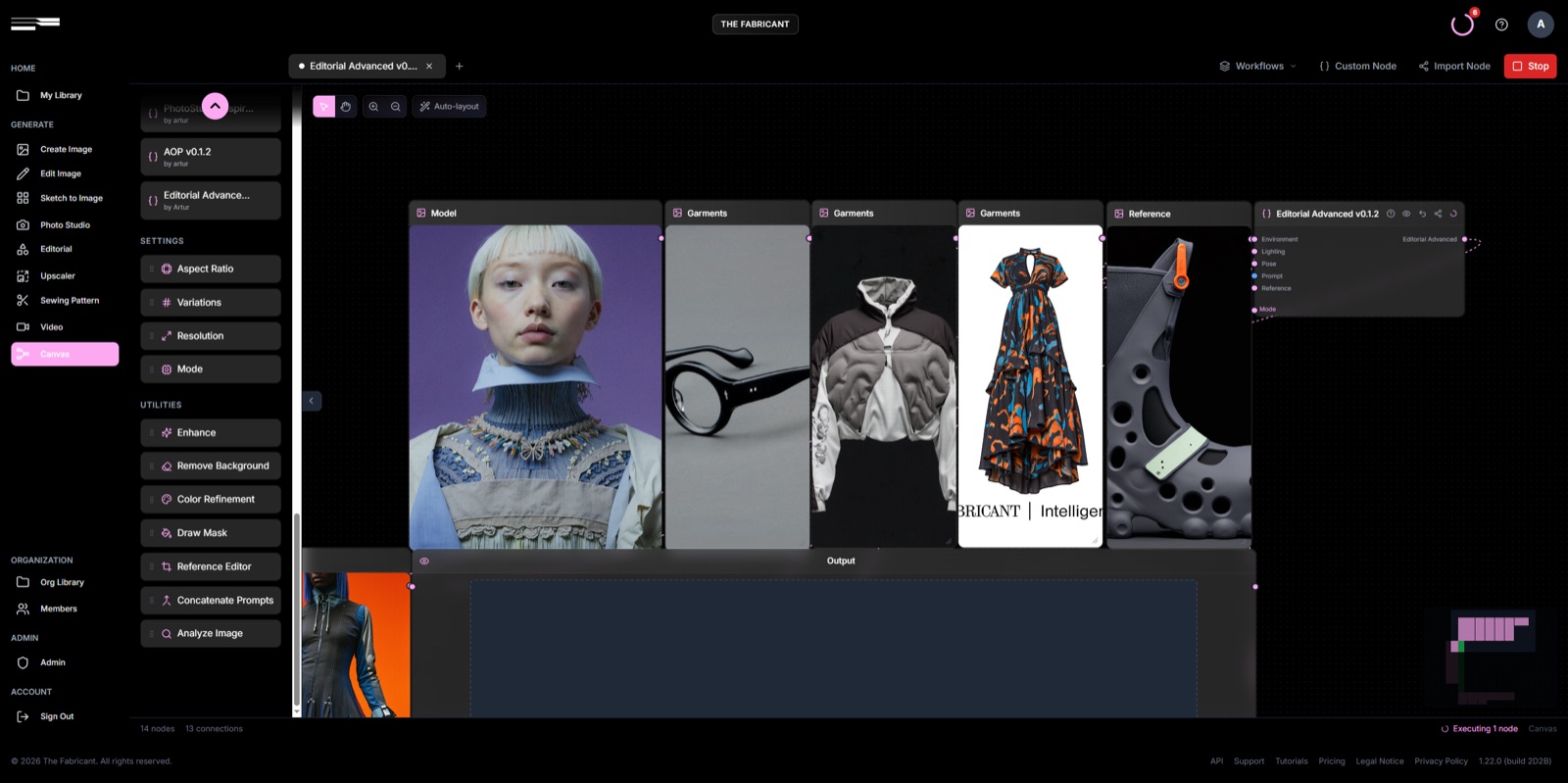
Model takes a portrait or headshot. It sets identity, facial features and baseline appearance.
Garments holds the clothing you want on the model, one piece per slot.
Reference is for hardware, footwear, textures or other non-garment details to fold into the look.
Pose takes a posture image and dictates stance, angle and camera level.
The labelled input slots: Model, Garments and a Reference component (a technical boot) feeding one look.
Environment, Lighting and Prompt
The remaining slots establish where your subject lives and how the frame is lit. The prompt is optional fine-tuning on top.
Environment takes a setting, backdrop or texture: concrete bunkers, landscapes, studio cycloramas.
Lighting takes an atmospheric lighting reference that sets mood, colour temperature and shadow depth.
Prompt (optional) accepts short text or style tags to fine-tune what the references can't fully show.
One detail worth knowing: the node illuminates model, garments and environment with a single light source, so the whole frame reads as one shot rather than a collage.
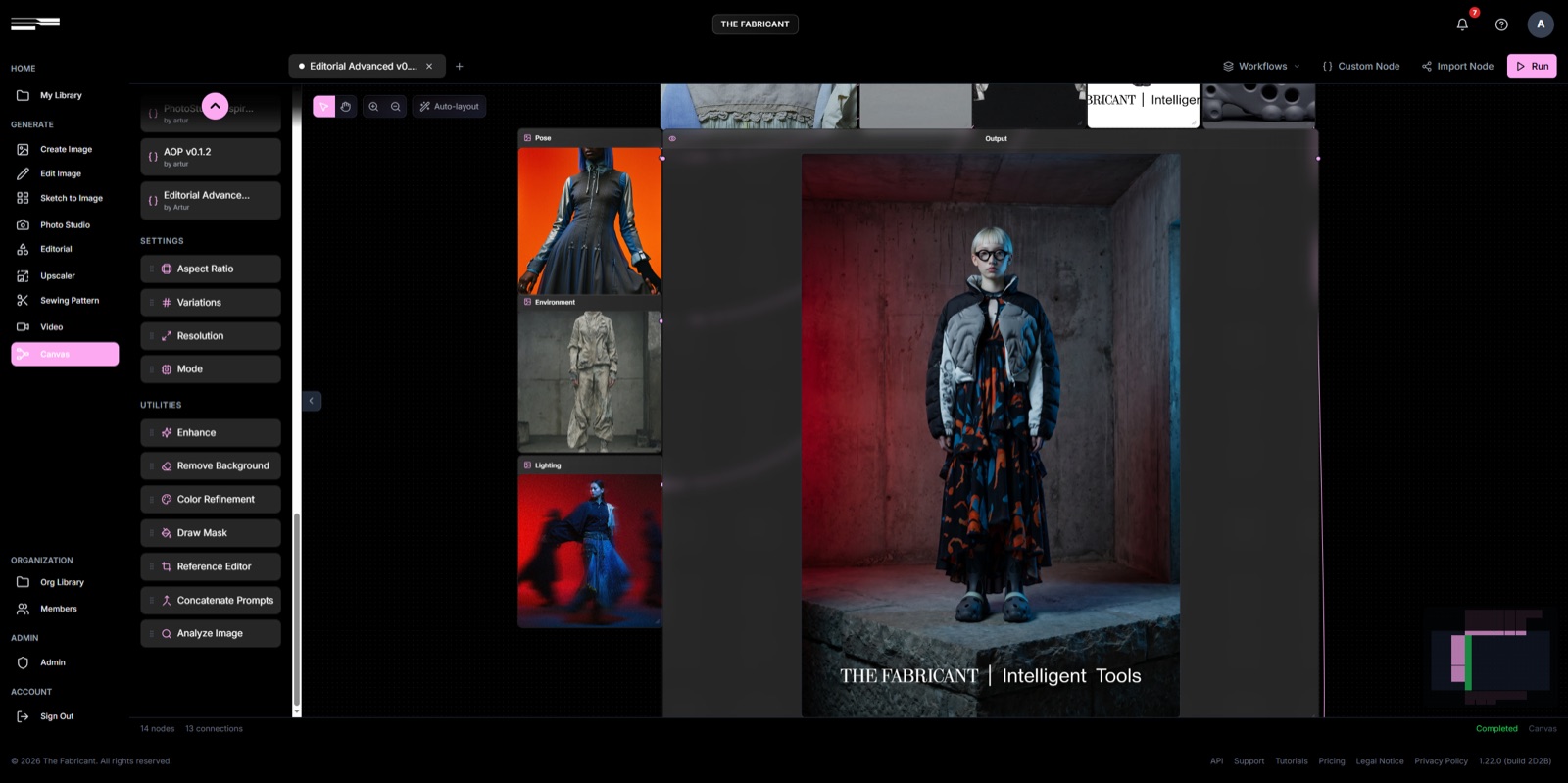
Pose, environment and lighting references (left) resolve into a single, uniformly-lit output.
Output settings: resolution, mode and aspect ratio
Fine-tune output quality from the settings nodes attached to Editorial Advanced:
Resolution controls final pixel size and crispness, up to 2K.
Mode offers Fast for quick brainstorming and HQ for campaign-ready depth. Fast mode does not support 2K.
Aspect Ratio sets output dimensions: portrait, landscape or custom.
A workflow tip: test reference combinations in Fast mode, then switch to HQ for your final 2K runs.
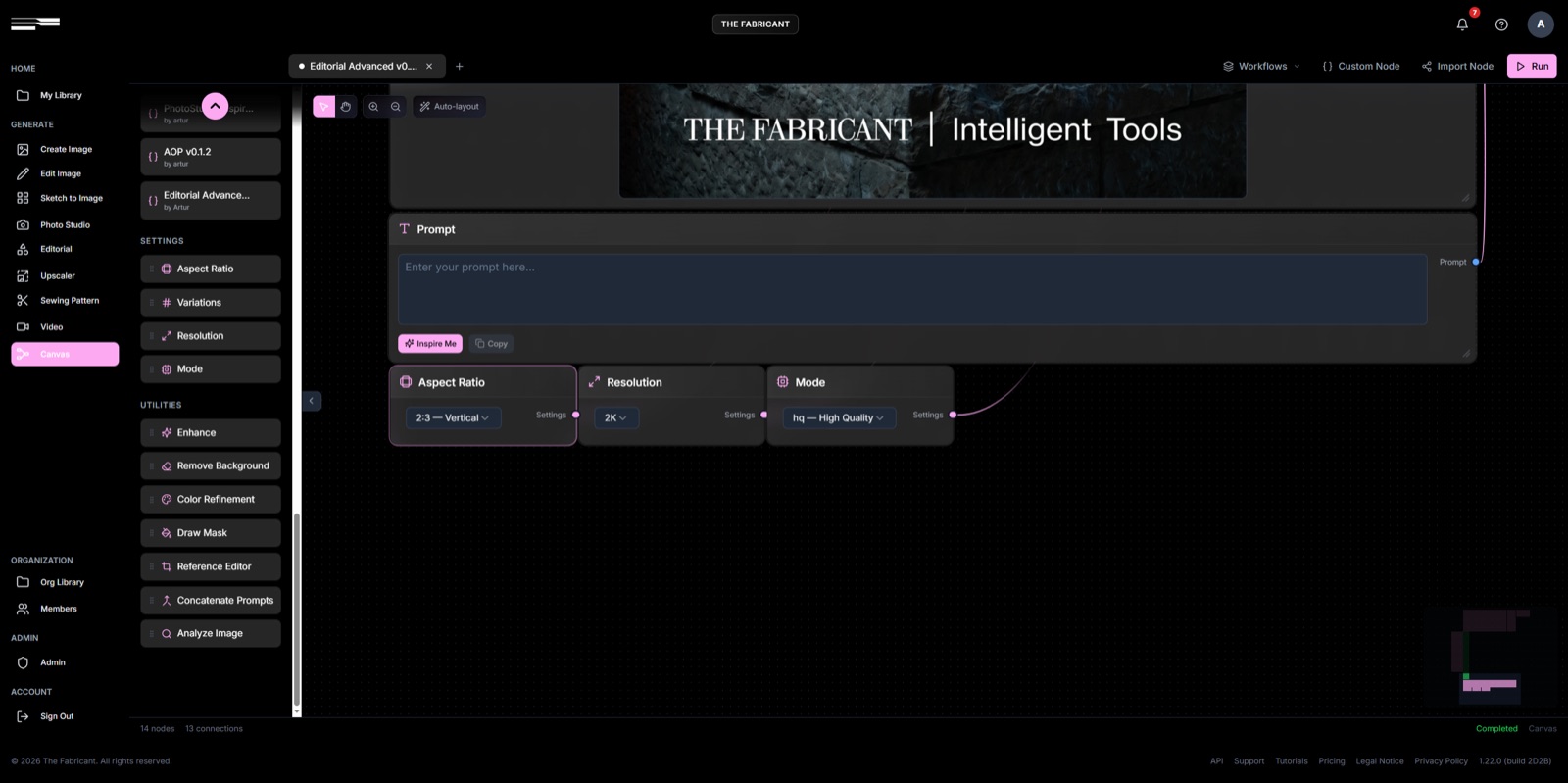
Settings nodes: Prompt, Aspect Ratio (2:3 Vertical), Resolution (2K) and Mode (HQ, High Quality).
One model, one workflow, many worlds
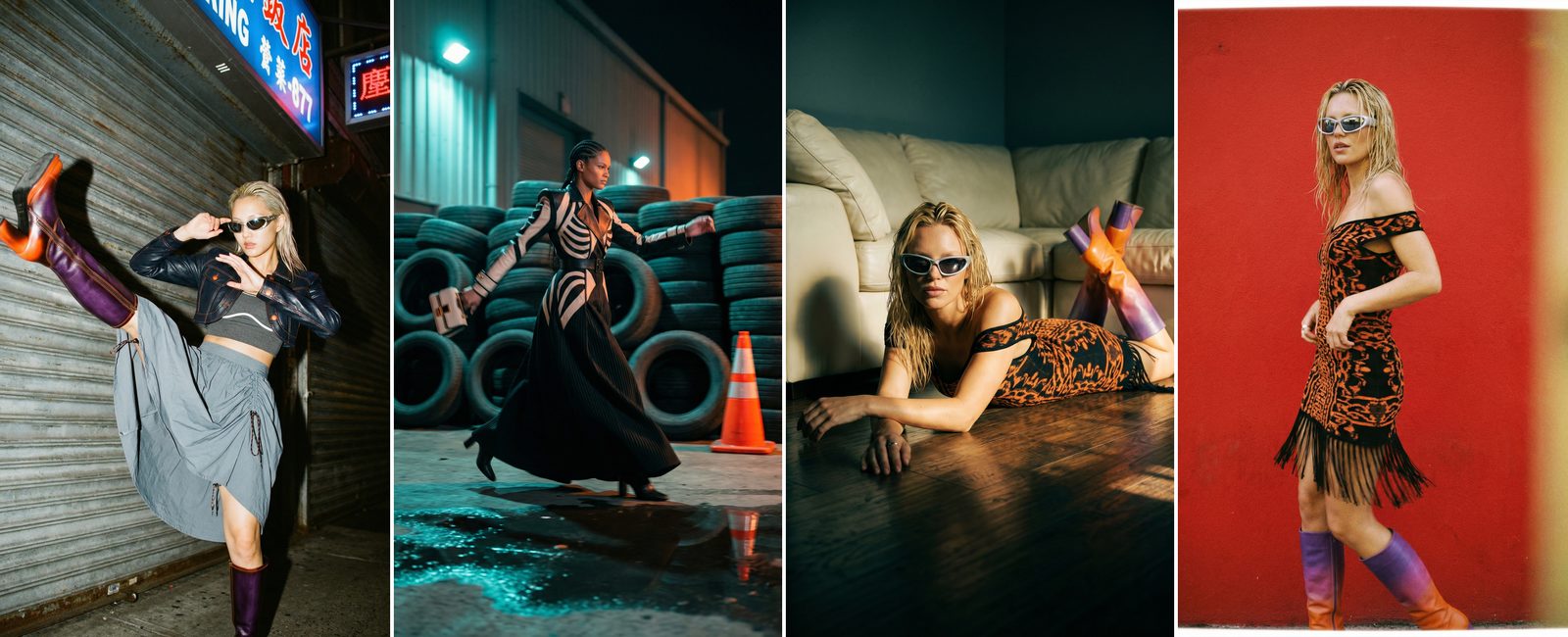
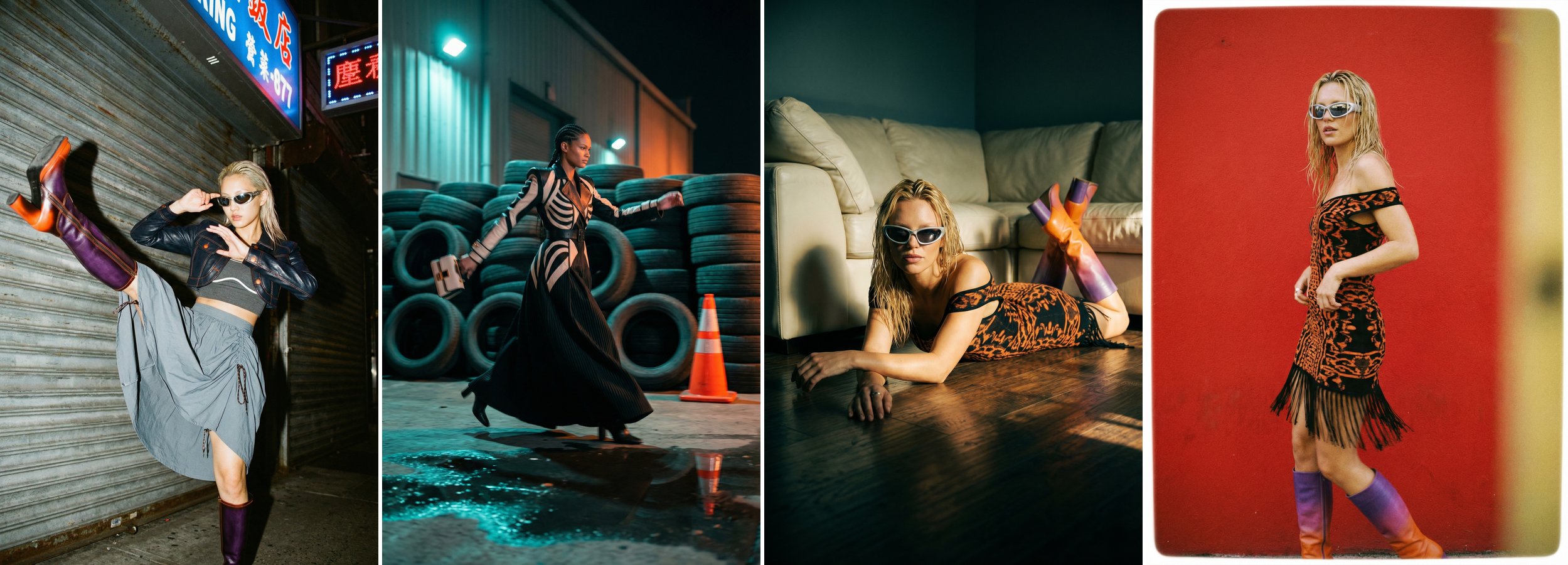
Everything below comes from the same Editorial Advanced workflow. Swap the Environment and Lighting references and the same model steps from a neon-lit street into a tyre yard, an interior at golden hour, or a saturated red wall.
On location: neon street, tyre yard with a teal wash, low sun across a wood floor, and a saturated red wall.
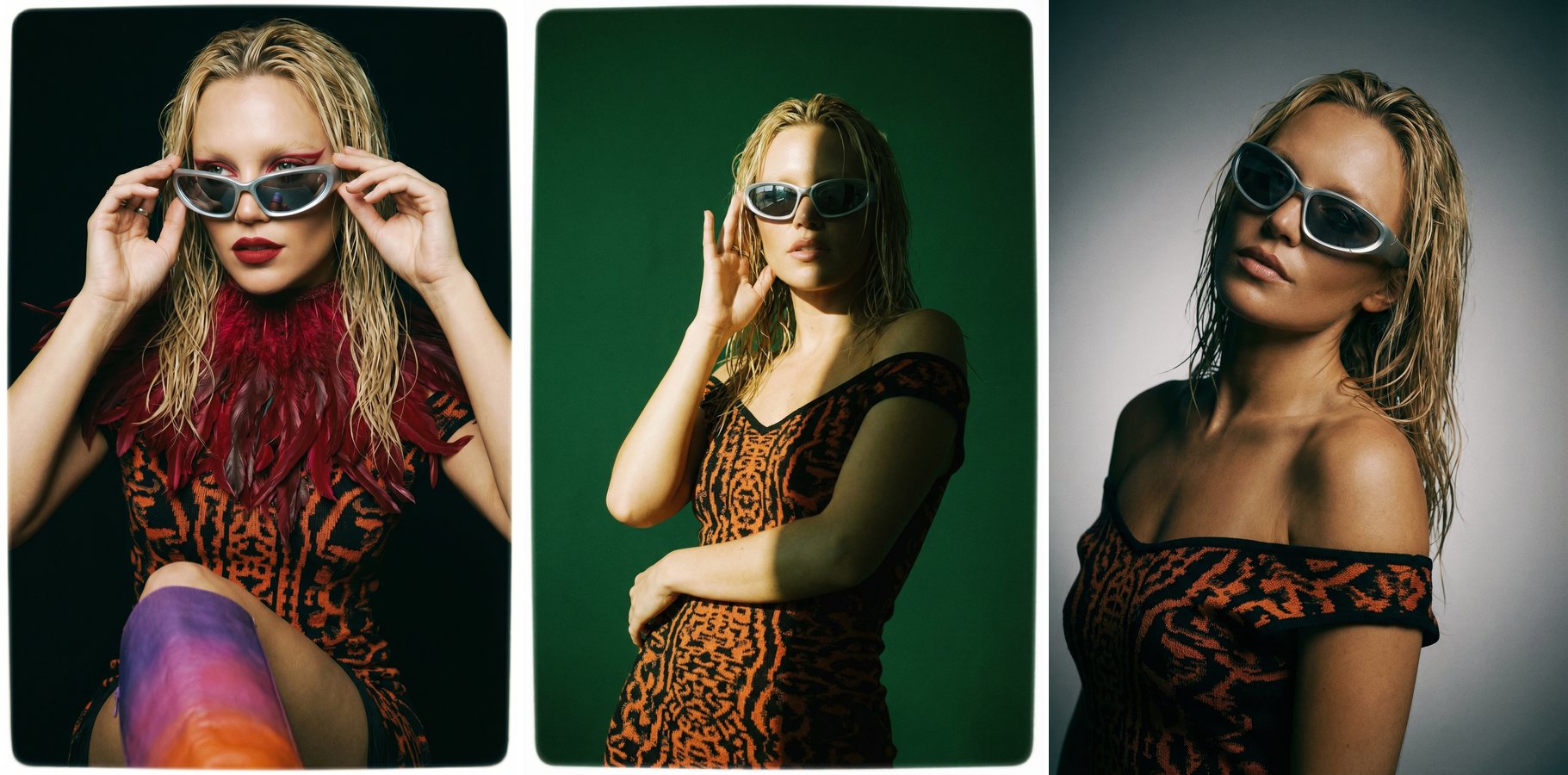
Keep the model and garments locked and feed the node studio references instead, and you get a clean lookbook set from the same graph.
In the studio: the same look on black, green and grey backdrops, changed only via the Environment and Lighting slots.
Import the ready-made workflow
Start from the exact node setup shown in this guide. Download the public Editorial Advanced workflow and import the .json straight into Canvas: