Edit Reference Tool - AI fashion editing using a reference image in The Fabricant Intelligent Tools
Authored by
Kerry Murphy
Date Published
March 9, 2026

How to Use the Edit Reference Tool

The Edit Reference Tool is an AI-powered feature within The Fabricant Intelligent Tools that lets you use a second image as a visual guide when editing garments. Instead of relying on text prompts alone, you upload a reference — a fabric swatch, a logo, a sketch, or a texture — and apply it precisely to your design.

To access it, switch your generation quality to High Quality. The reference image panel will appear at the bottom right of the input image box.

How to access the Edit Reference Tool - switch to High Quality mode in The Fabricant Intelligent Tools
Switch to 'High Quality' to unlock the Edit Reference Tool at the bottom right of the reference image box.
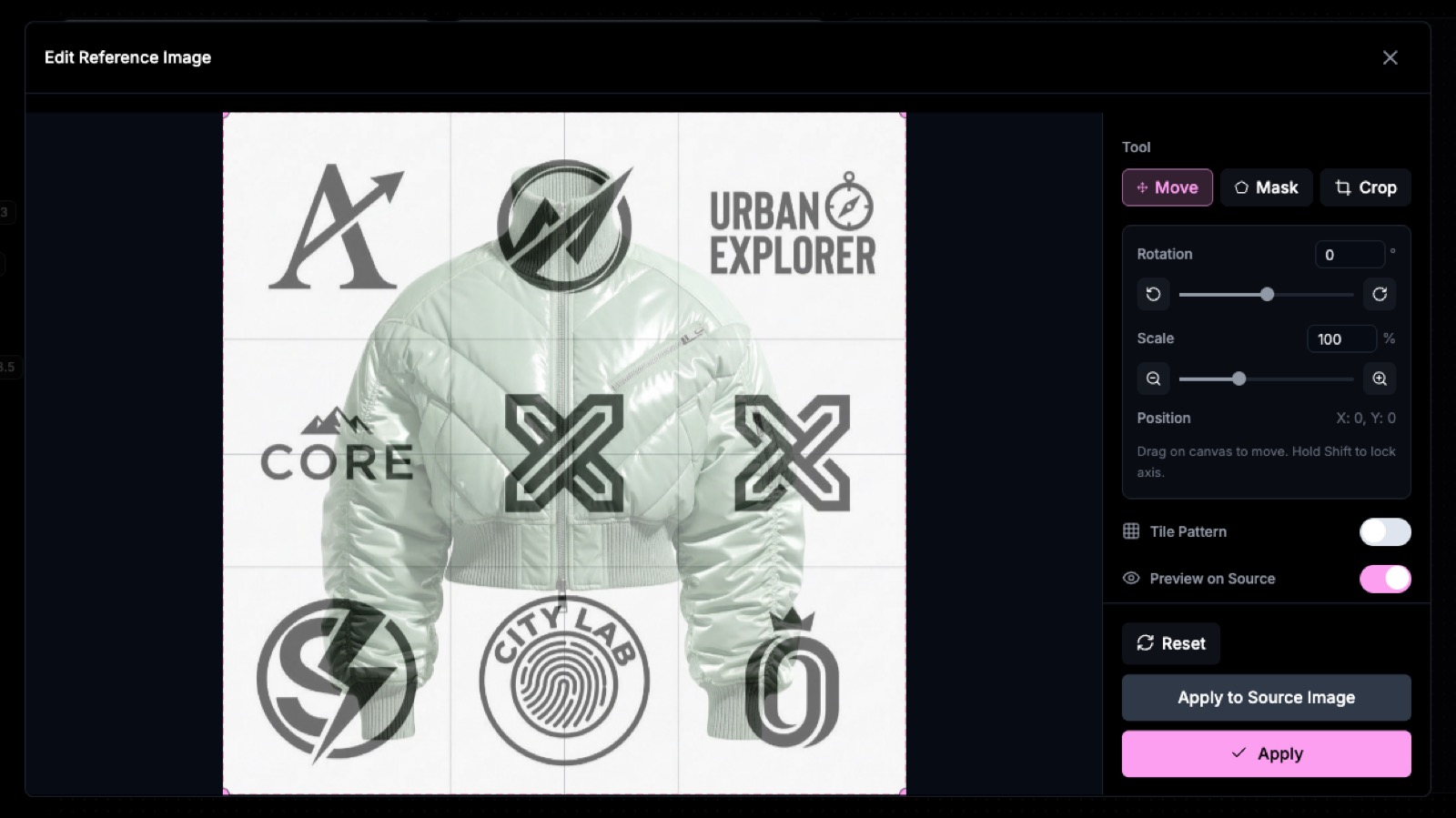
Edit Reference Tool overlay dialog - position, scale, rotate, mask and crop your reference image
The Edit Reference Tool dialog overlays your reference image onto your input image. Use the controls to position, scale, rotate, mask, and crop the reference before generating.
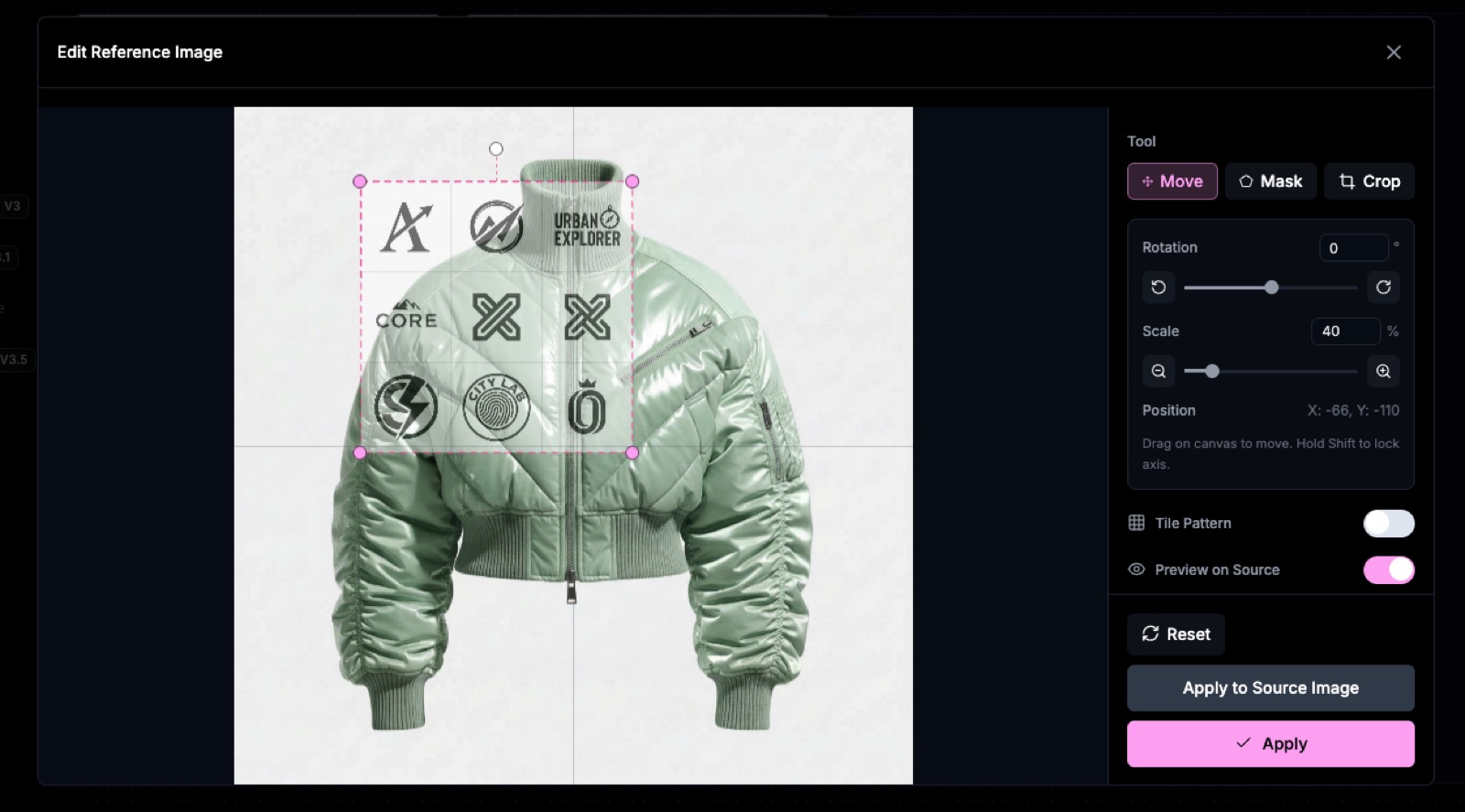
Edit Reference Tool - logo positioned and scaled onto the garment chest area
The logo has been positioned and scaled to the exact spot on the garment where it should be applied.
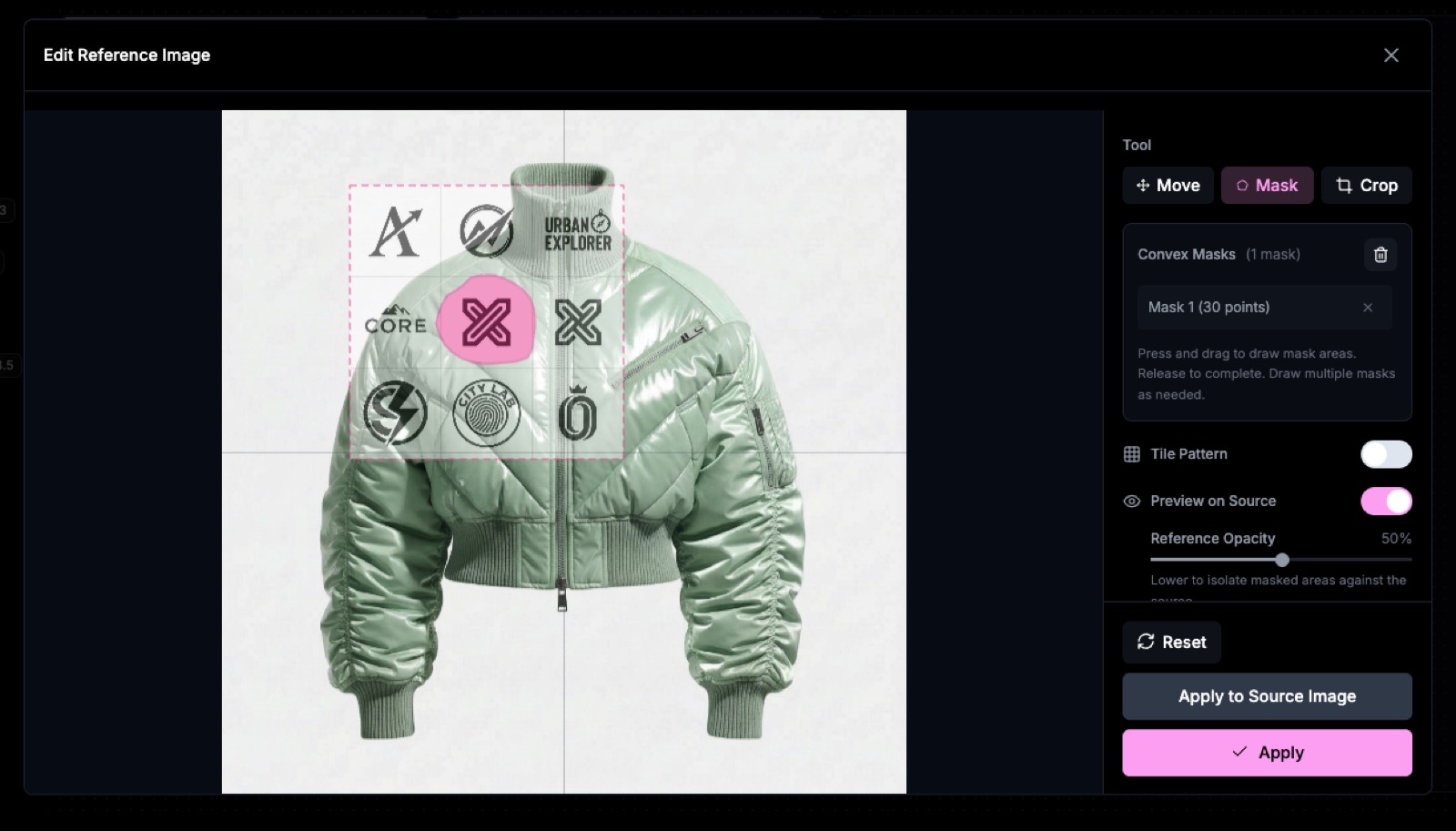
Edit Reference Tool mask settings - masking a logo and adjusting reference opacity
In the Mask section, mask the logo to isolate it. Use the Reference Opacity slider to control the visibility of the surrounding reference image.
Edit Reference Tool Apply to Source Image - bakes the reference directly onto the input image
Pressing 'Apply to Source Image' bakes the reference directly onto the input. Using 'Apply' without this influences the generation without modifying the original input image.
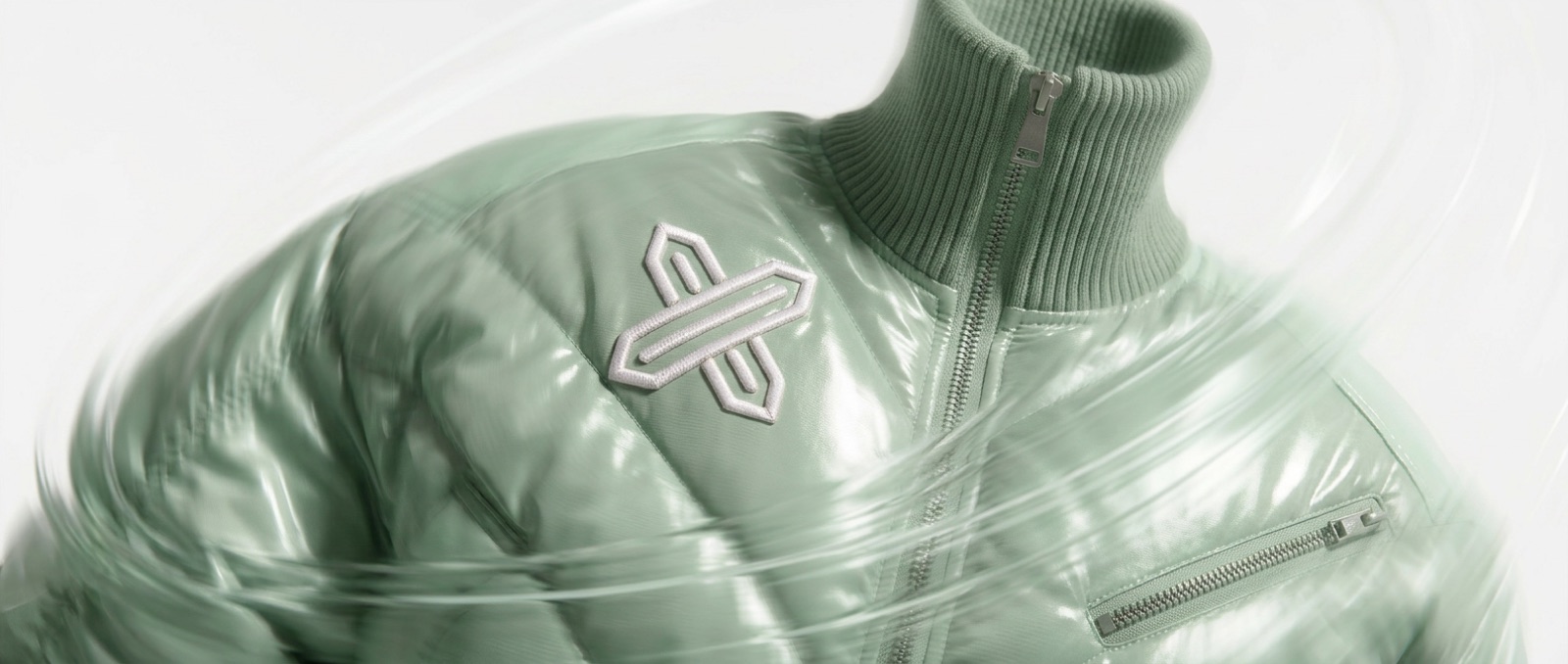
AI fashion edit result using the Edit Reference Tool with a descriptive text prompt
With a specific text prompt, the reference is applied realistically to the garment.

Six Ways to Use the Edit Reference Tool

01. Modify Denim Washing

Upload a denim swatch or wash reference to transform the texture and treatment of any garment. The tool reads the visual properties of the reference fabric — distressing, colour, weight — and applies them to the target piece.

Edit Reference Tool example - modify denim washing: reference fabric, original garment, edit in progress, and acid-washed denim result

Prompt: Apply as acid-washed denim

02. Apply Materials

Reference any fabric or material image to replace or overlay it onto your garment. Ideal for testing how a specific textile looks applied to a coat, jacket, or other piece before production.

Edit Reference Tool example - apply materials: reference fabric swatch, original coat, material application in progress, and final result

Prompt: Use and apply the reference fabric naturally on the coat.

03. Add Logos Precisely

Upload a logo as your reference image to place it accurately on any garment. Use the positioning, scaling, rotation, and masking controls in the reference dialog to align it exactly where you want it before generating.

Edit Reference Tool example - add logos precisely: reference logo, original garment, positioning process, and white embroidery result

Prompt: Add this logo as a white embroidery

04. Modify Techpack Sketches

Flat techpack sketches work as powerful reference images for guiding structural changes. Use a sketch to direct changes to silhouette, construction details, or surface elements on a photorealistic garment render.

Edit Reference Tool example - modify with techpack sketches: flat sketch reference, garment, edit process, and structured result

Prompt: Apply the structural details from the reference sketch

05. Change Collar Shapes Based on a Sketch

A collar sketch used as a reference guides the AI to reshape the neckline of any garment to match — useful for rapid prototyping of collar and neckline variations without reshooting.

Edit Reference Tool example - change collar shapes: collar sketch reference, original garment, reshaping process, and reshaped collar result

Prompt: Modify the collar shape to match the reference image.

Pro Tip: Enhance and Restore Details

After multiple rounds of AI editing, image quality can degrade. Press the Enhance button next to the generation arrow to restore sharpness and clarity before continuing your edit session.

Edit Reference Tool pro tip - enhance and restore image detail after multiple AI edits in The Fabricant Intelligent Tools
Press the 'Enhance' button next to the generation arrow. Use this when you notice visible image degradation after repeated edits.

Ready to try it? Open The Fabricant Intelligent Tools, switch to High Quality mode, and access the Edit Reference Tool from the reference image panel.

Join the Conversation Today!

Dive deeper into our latest insights and tips. Subscribe now to stay updated and enhance your knowledge.

By clicking Sign Up you're confirming that you agree with our Terms and Conditions.
Thank you! Your submission has been received!
Oops! Something went wrong while submitting the form.