
Accurate Colorways is The Fabricant's workflow for applying brand-precise color to digital garments using Hex codes, Pantone references, and batch automation. This tutorial walks you through two complementary methods: the Edit Image tool for one-off color adjustments, and the Canvas tool for generating an entire collection of colorways in a single run.
Tools used: Edit Image and Canvas custom workflow.
Goal: Master both quick edits and advanced batch processing for precise color application across your collection.
Best for: one-off changes or testing specific colors on a single garment.
Open the Generate menu in the left sidebar and select Edit Image. Click the Upload icon and choose your source file — for example, a neutral grey t-shirt that you want to recolor across multiple Pantone references.
In the prompt field, type change to color # followed by your desired Hex code (e.g. change to color #C8102E).
A small eyedropper icon appears next to the prompt. Click it to open the color palette, where you can:

To match brand-spec output, two toggles are critical:

Pro Tip: You can also upload a Reference Image — for example, a Pantone or Coloro swatch — alongside your source garment. The tool will sample the color from the swatch and apply it to your garment automatically.
Best for: generating a full collection of 10+ colorways simultaneously to save time and credits.
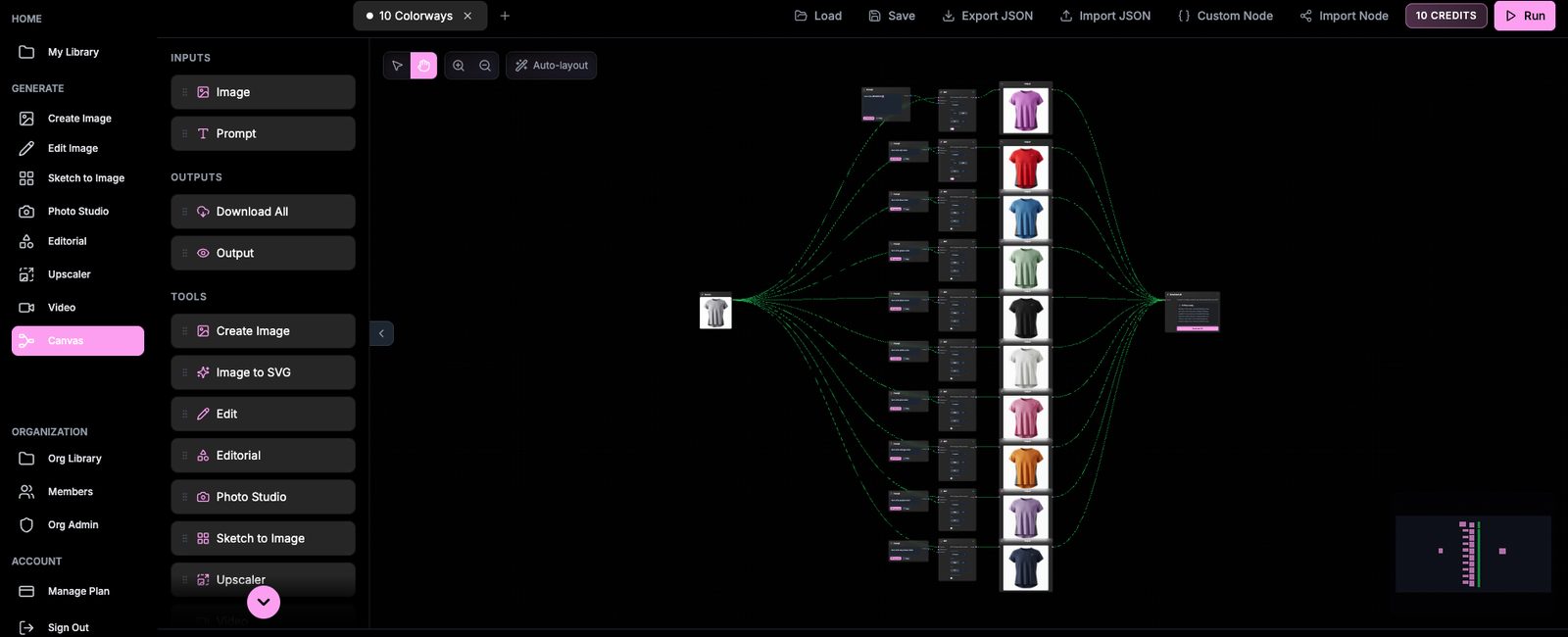
Open the Canvas tool from the sidebar. Instead of building a workflow from scratch, you can load a pre-built template:
This is a workflow built by The Fabricant. To request access, get in touch at support@thefabricant.com.

On the far left of the canvas, locate the Source Image node. Upload your garment here once — this single image automatically feeds into all ten color-generating nodes downstream. Each node is pre-programmed with a different color prompt (for example, "turn into red color" or "turn into blue color").

Before running, verify that every Edit node has High Quality enabled and Color Accuracy turned on — the same brand-fidelity settings as Method 1, but applied across the full set.
Click the Run button at the top right. The system processes all colorways at once, and when it finishes you can download every result in a single .zip folder.

Not happy with one of the ten results? You don't have to re-run the whole batch and burn the credits. Instead:

For one-off color tests, the Edit Image tool gives you precision and speed. For full collection drops, the Canvas "10 Colorways" workflow turns ten Edit Image runs into a single click — and lets you swap individual colorways without rebuilding the batch. Combine both: prototype a hero color in Edit Image, then load the full Pantone palette into Canvas for production.
Open The Fabricant to try the Edit Image tool, or contact support@thefabricant.com for the 10 Colorways Canvas workflow.